
Completing an Order on Driver App
Completing the orders
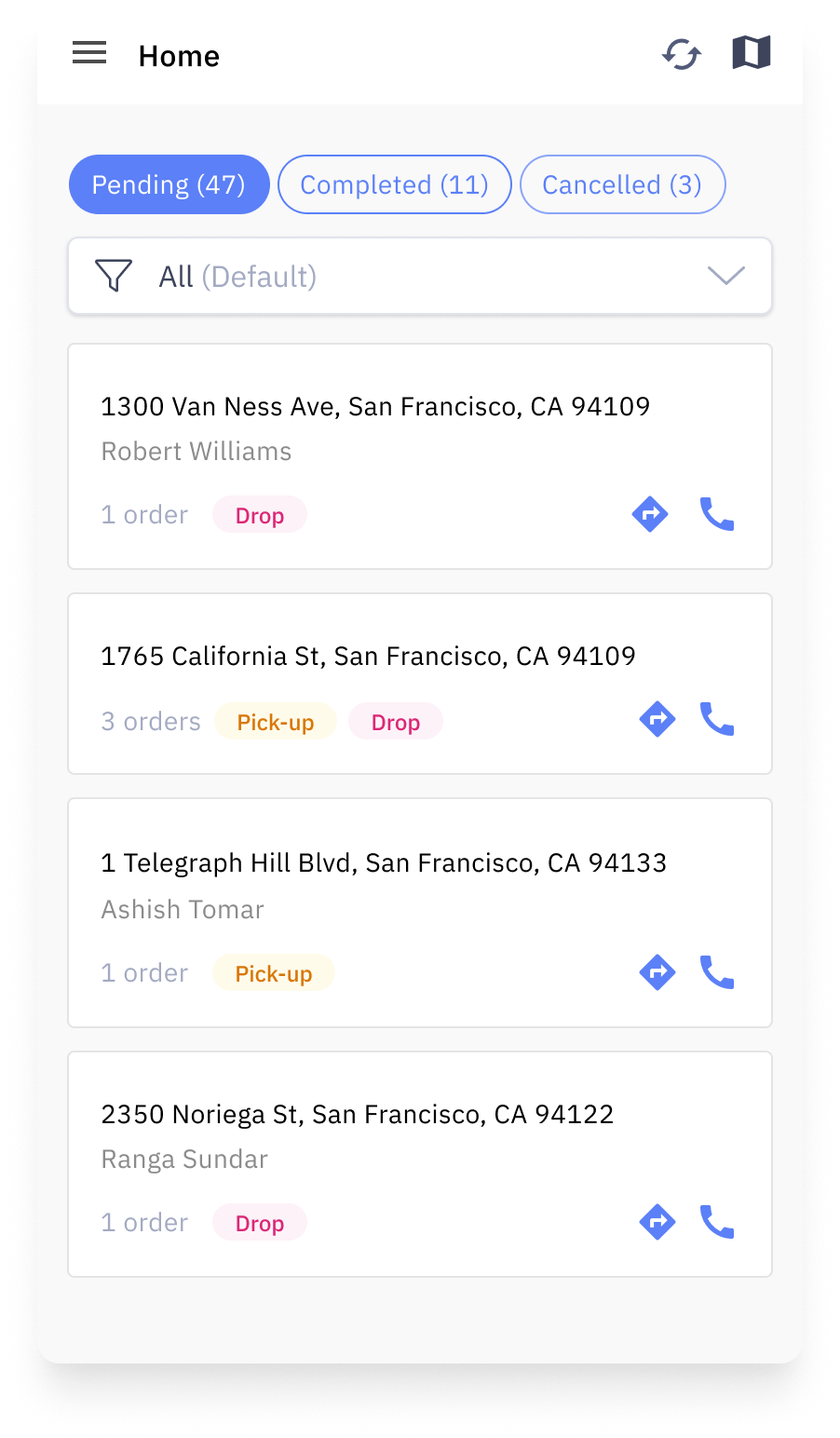
- Once the driver has logged in, the driver will be taken to the home screen
- Here, the driver can see a list of locations which the driver needs to visit. Each card represents one location, and displays the following information:
- Address
- Pickup/Drop Contact Name
- Type of visit (Pickup/Drop/Return)
- Each location card has a call button which can be used to call the consignee. Clicking on the call button will display a list of phone numbers if there are multiple phone numbers associated with the location.
- Each location card also has a ‘Navigate’ button. Clicking on this opens up the default Maps application with the start location as your current location, and the end location as the location associated with the tasks.
- On the home screen, the top menu bar should display two buttons:
- Refresh button - this fetches the latest dispatch and jobs assigned to you
- Map button - this should open the map view of tasks
- The location cards are shown under three tabs/filters, based on the status of the jobs within that location:
- Pending
- Completed
- Cancelled
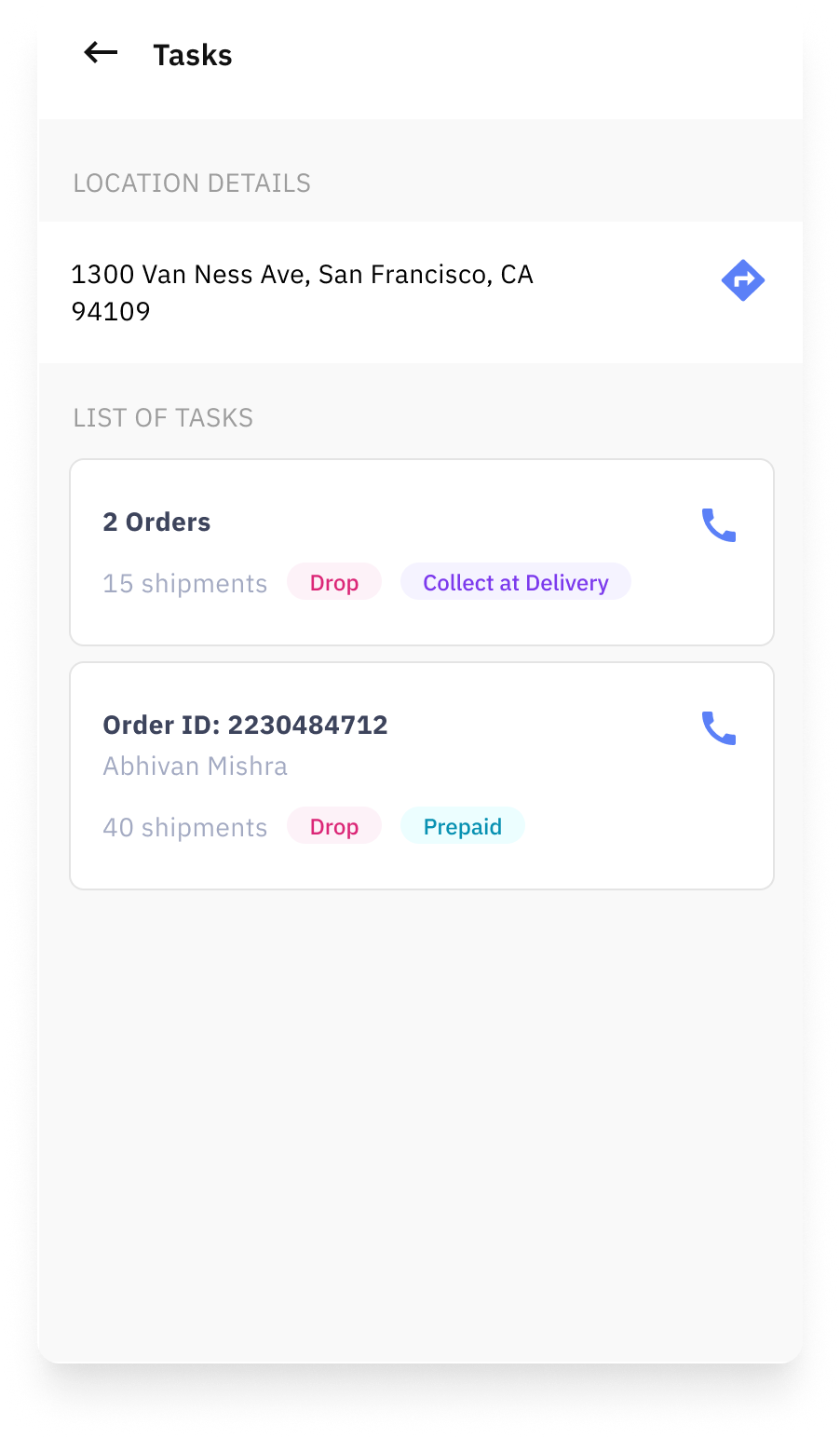
- Clicking on a location card take the driver to the Task List screen, which lists all of the type of vistis for that location
- This page displays the following details
- Location Details (full address)
- Navigation button
- List of Tasks: Each card represents one objective or set of merged objectives. Each card should contain the following information:
- Pickup/Drop Contact Name
- Order ID if one order, or count of orders if more than one order
- Objective Type (Pickup/Drop/Return)
- Payment Type (Prepaid/Collect at Delivery)
- Clicking on a task card will redirect you to the Order Details page.
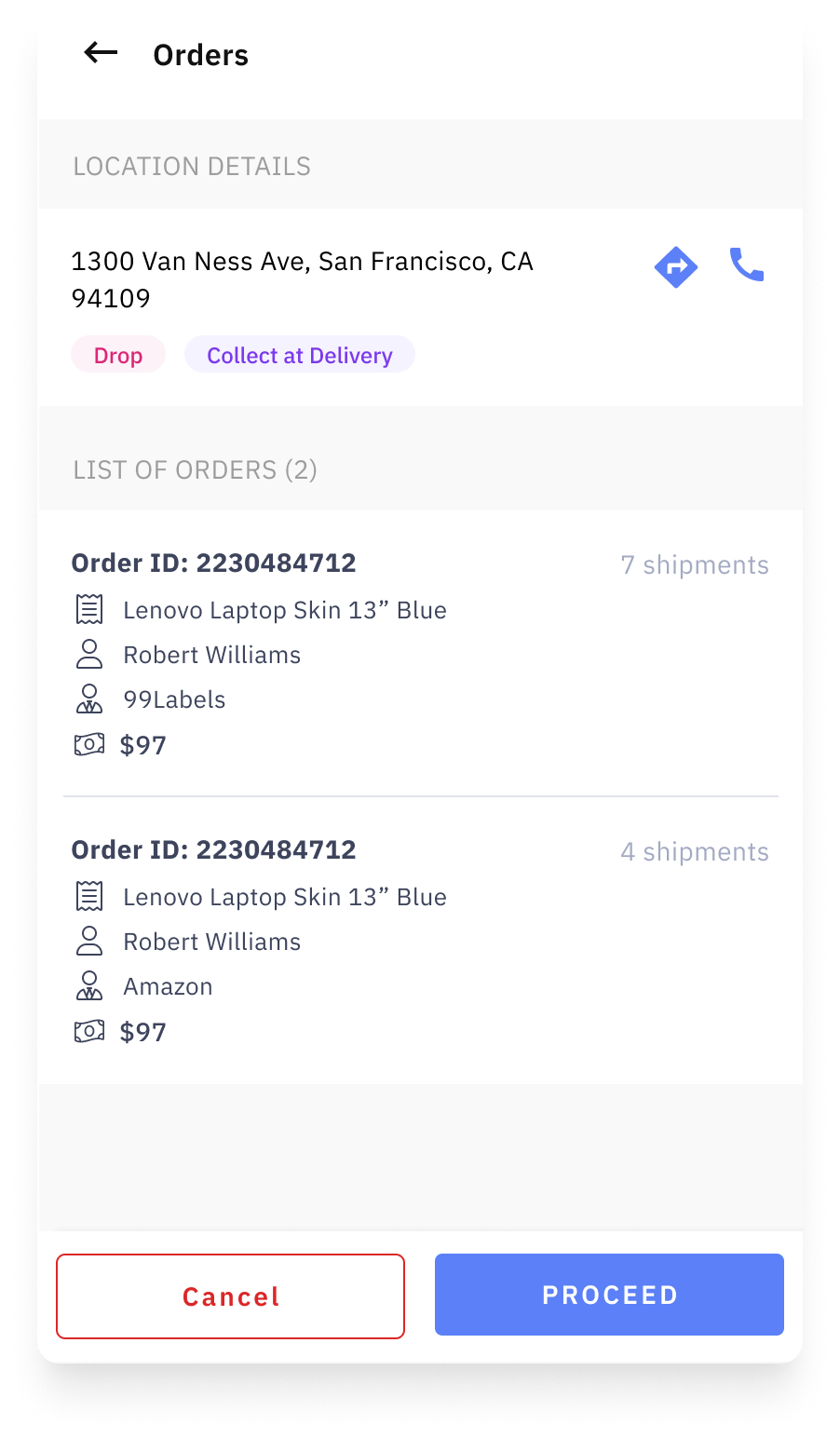
- This page contains a list of orders which make up a task.
- Within each card which represents an order, the following information should be displayed:
- Order ID
- Count of shipments in the order (if more than 1)
- Order Description
- Pickup/Drop Contact Name
- Client ID (if Client FPA is enabled)
- Payment Amount (if present)
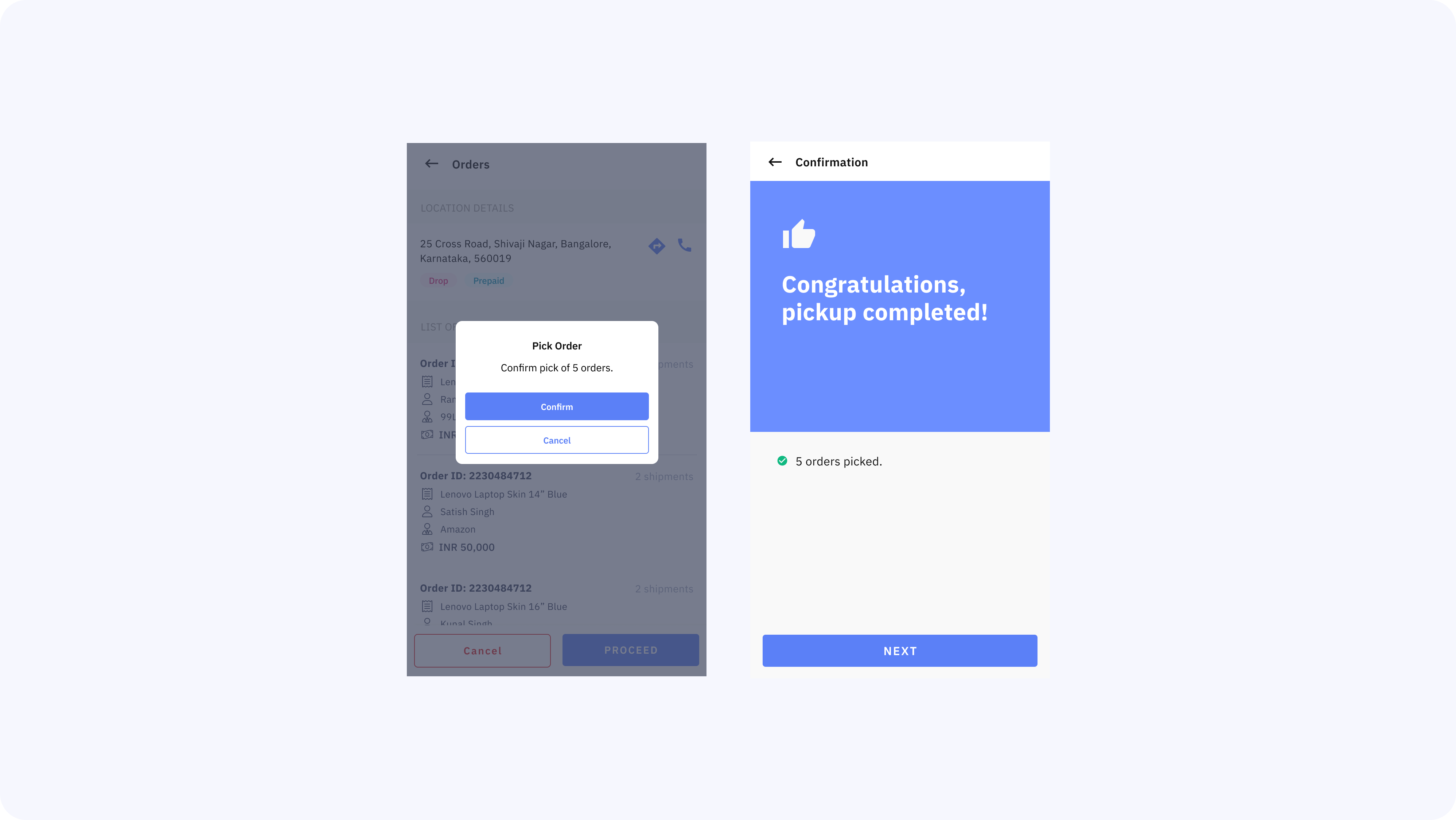
- Click on ‘Proceed’ will begin the pickup task. A confirmation is required to complete the pickup task.
- Once the pickup task is done, the driver can then Click on a drop task and navigate to the location before clicking on ‘Proceed’. This will initiate the drop task.
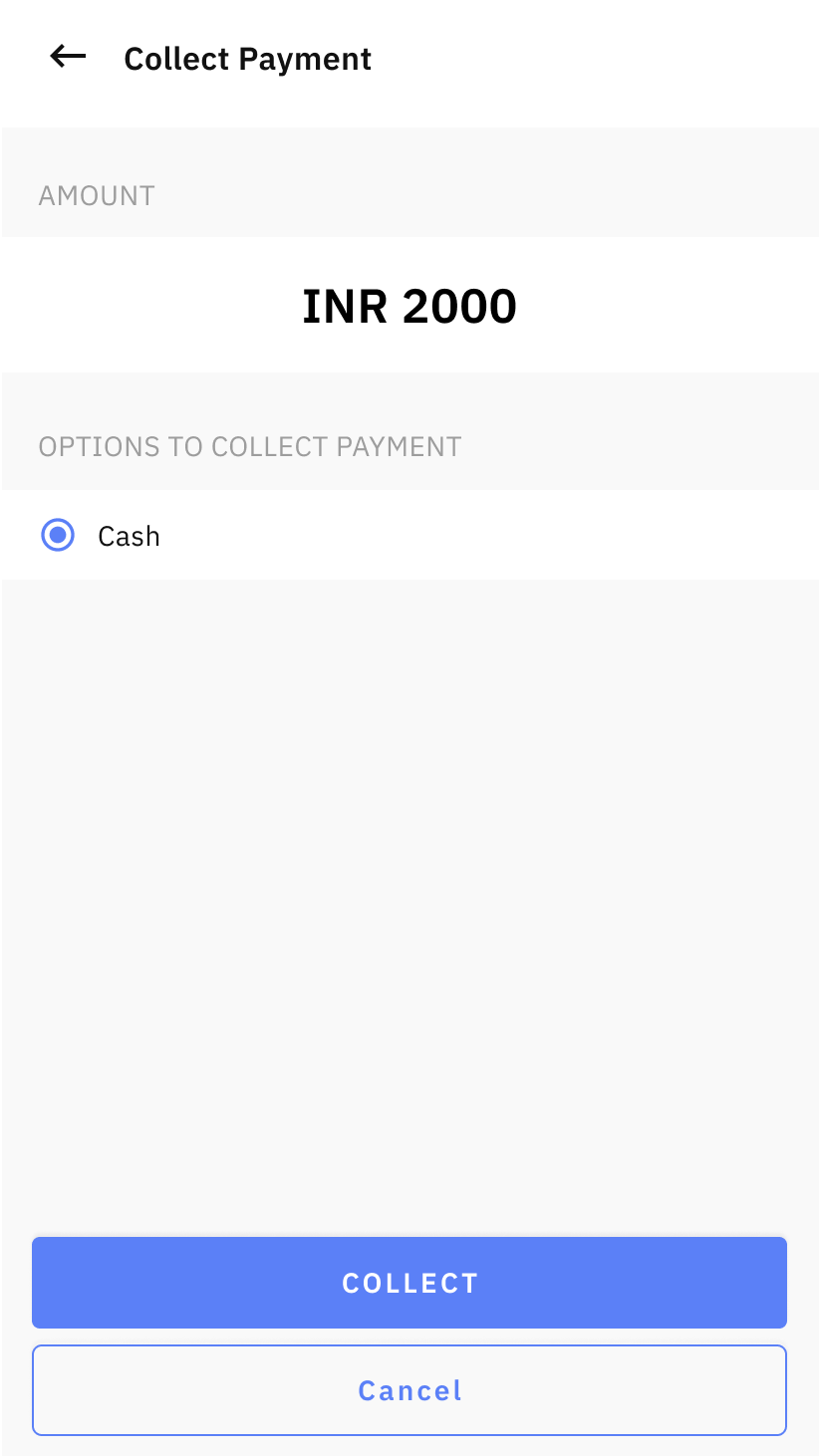
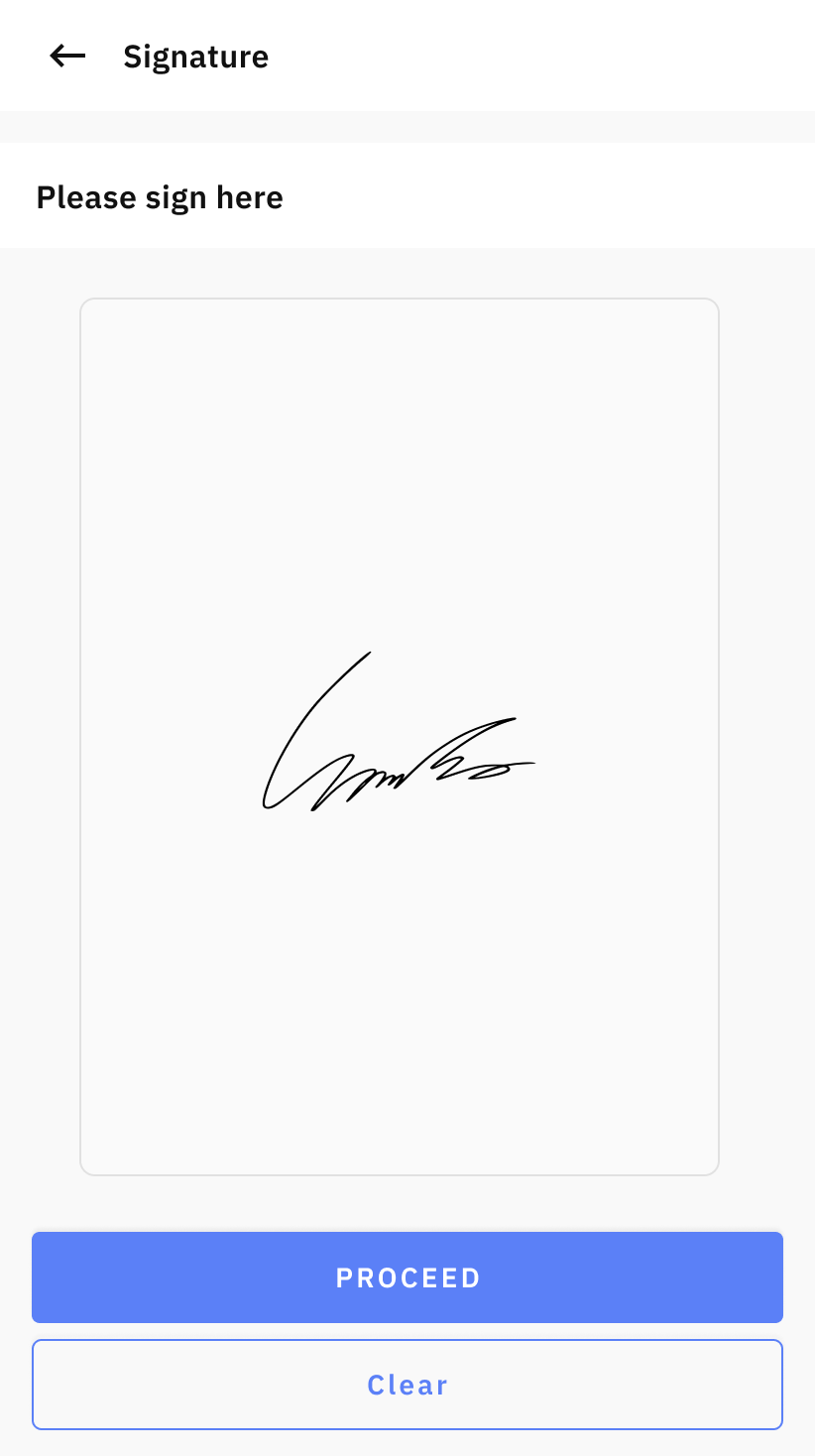
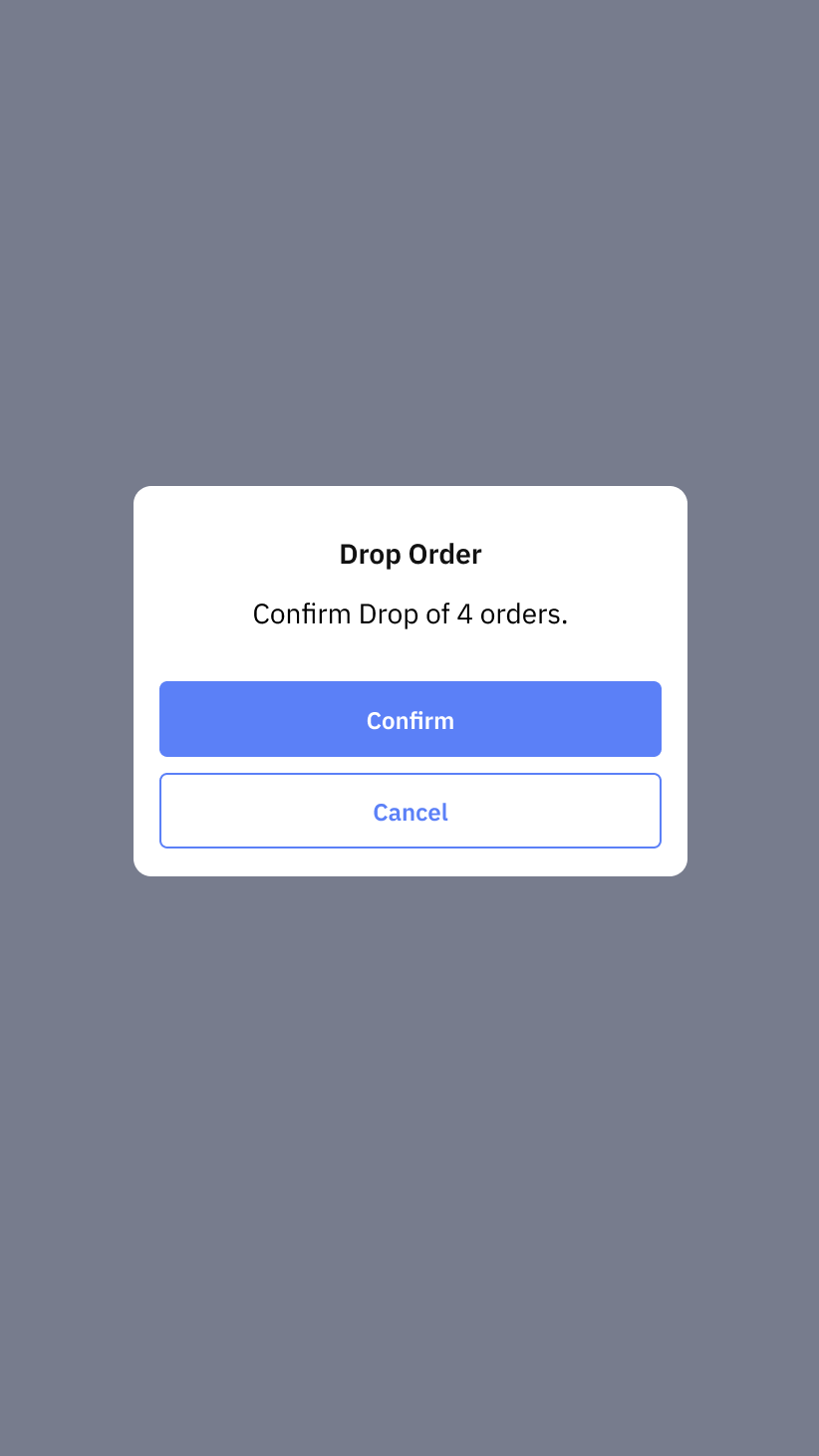
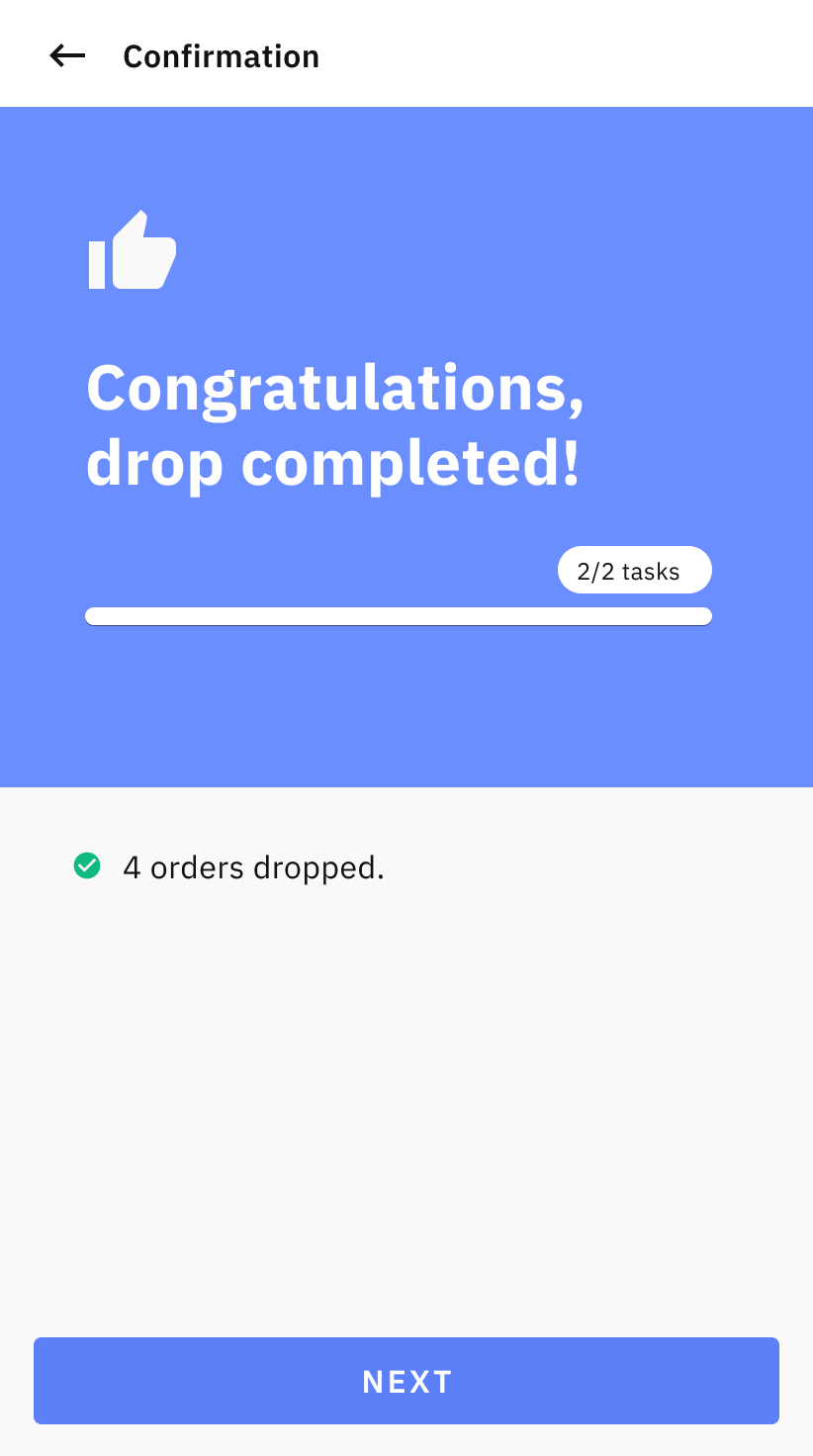
- If the order is a Collect on Delhivery, then the collect payment screen will show up. Once the payment confirmation is received the driver will have to get the signature of the consignee as proof of delivery. Once the signature is captured the driver can complete the drop by clicking on "Confirm". This completes the drop task.
- The driver can click on "Cancel" anytime incase the consignee has cancelled or wants to "reschedule" the order, in which case the rescheduled date would be required
 |  |  |  |
The Driver can repeat the same process to complete all the tasks at hand.
Ending a Dispatch
Once all the tasks are complete, the driver needs to end the dispatch. This is important as any custody transfer (in terms of the cash collected or the undelivered orders) will happen during the End Dispatch stage.
Once the driver has completed all pending tasks, the driver can click on "End Dispatch" either from the home screen or from the left navigation to end the dispatch.
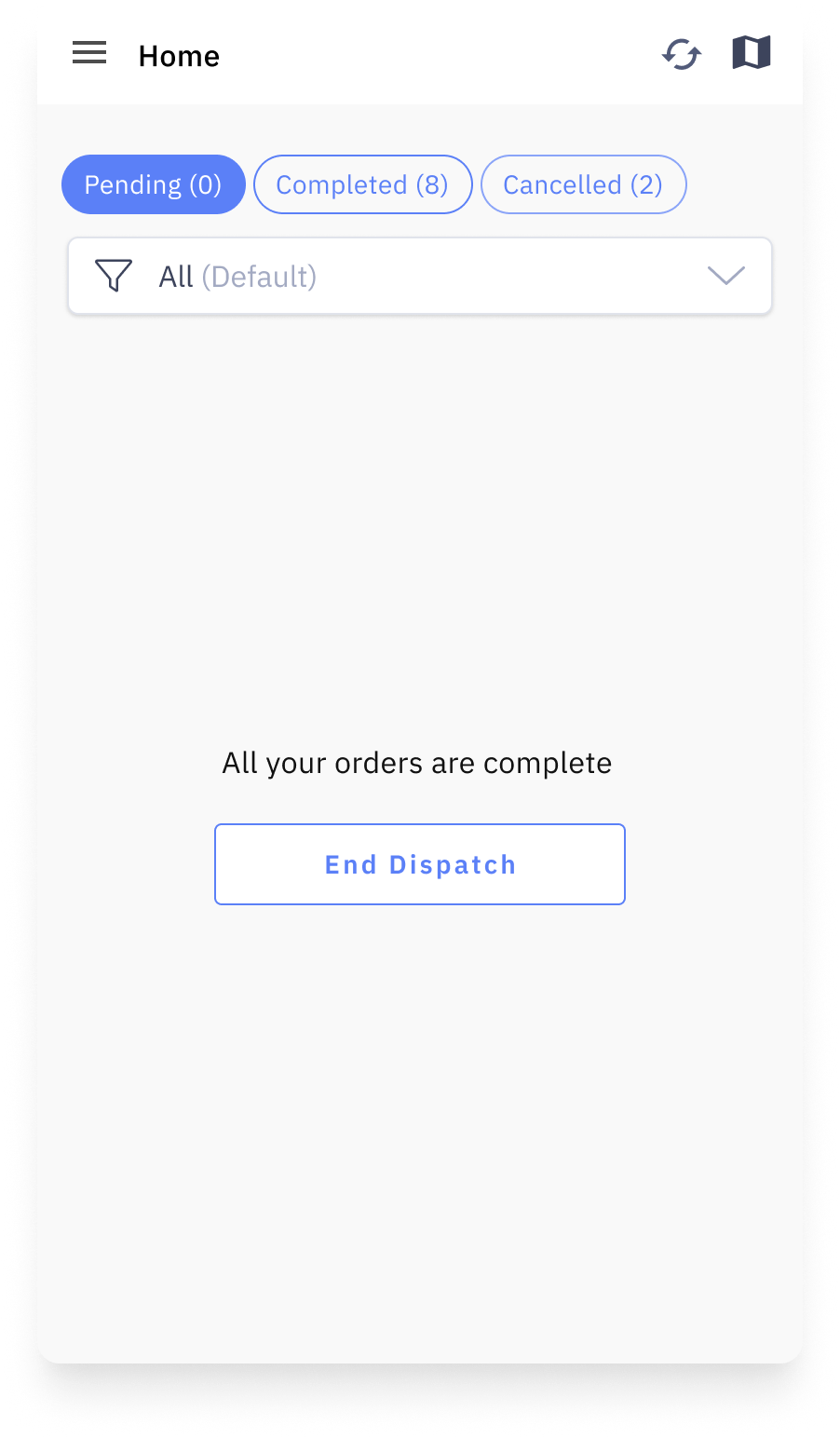
- Click on End Dispatch, this will take the driver to the Custody Transfer screen
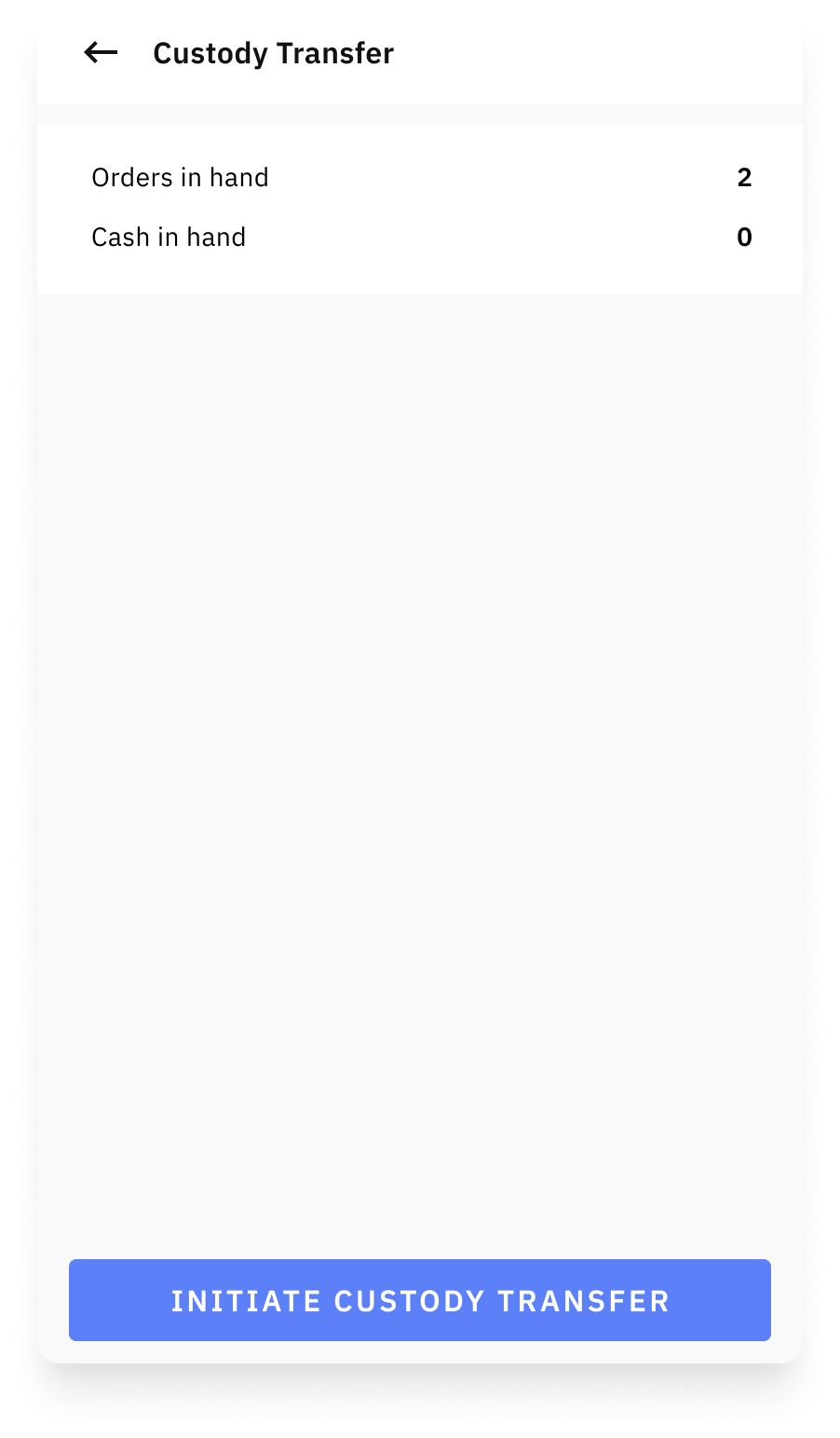
- The driver will see the following information on the Custody Transfer screen:
- Orders in hand
- Cash in hand
- Click on "Initiate Custody Transfer"
- If there are packages which are undelivered or need to be returned to the facility, the driver will see a Custody Change popup where the expected count of shipments is displayed.
- Once the driver has confirmed the details, the driver will see a successful confirmation message that the dispatch has been closed
With this, the dispatch has been closed and the driver is available for other dispatches.