Managing Orders
Once the orders are created, you can go ahead and plan for the dispatches. Before we get to dispatches we will quickly walk you through order status and how to work with orders.
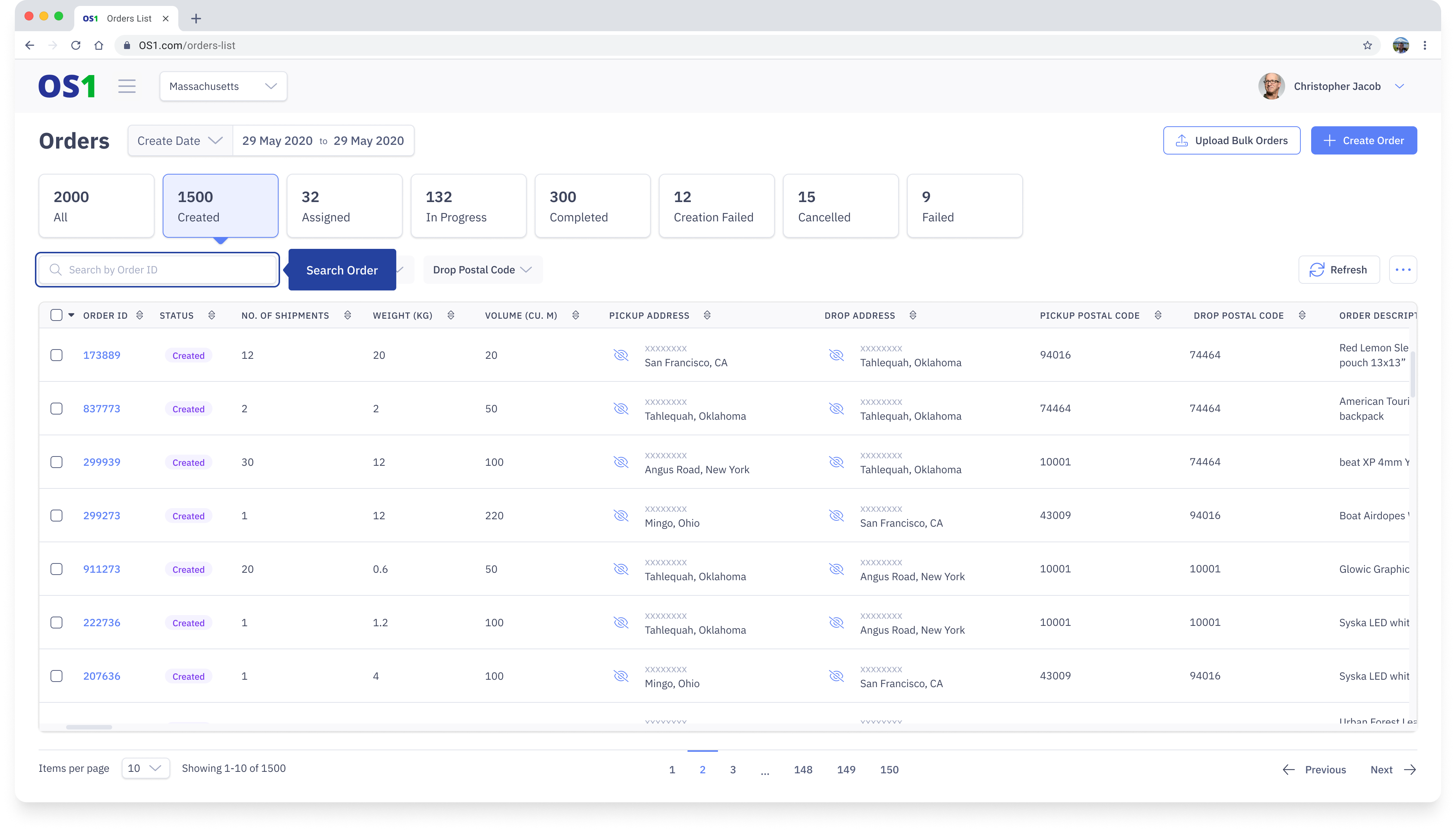
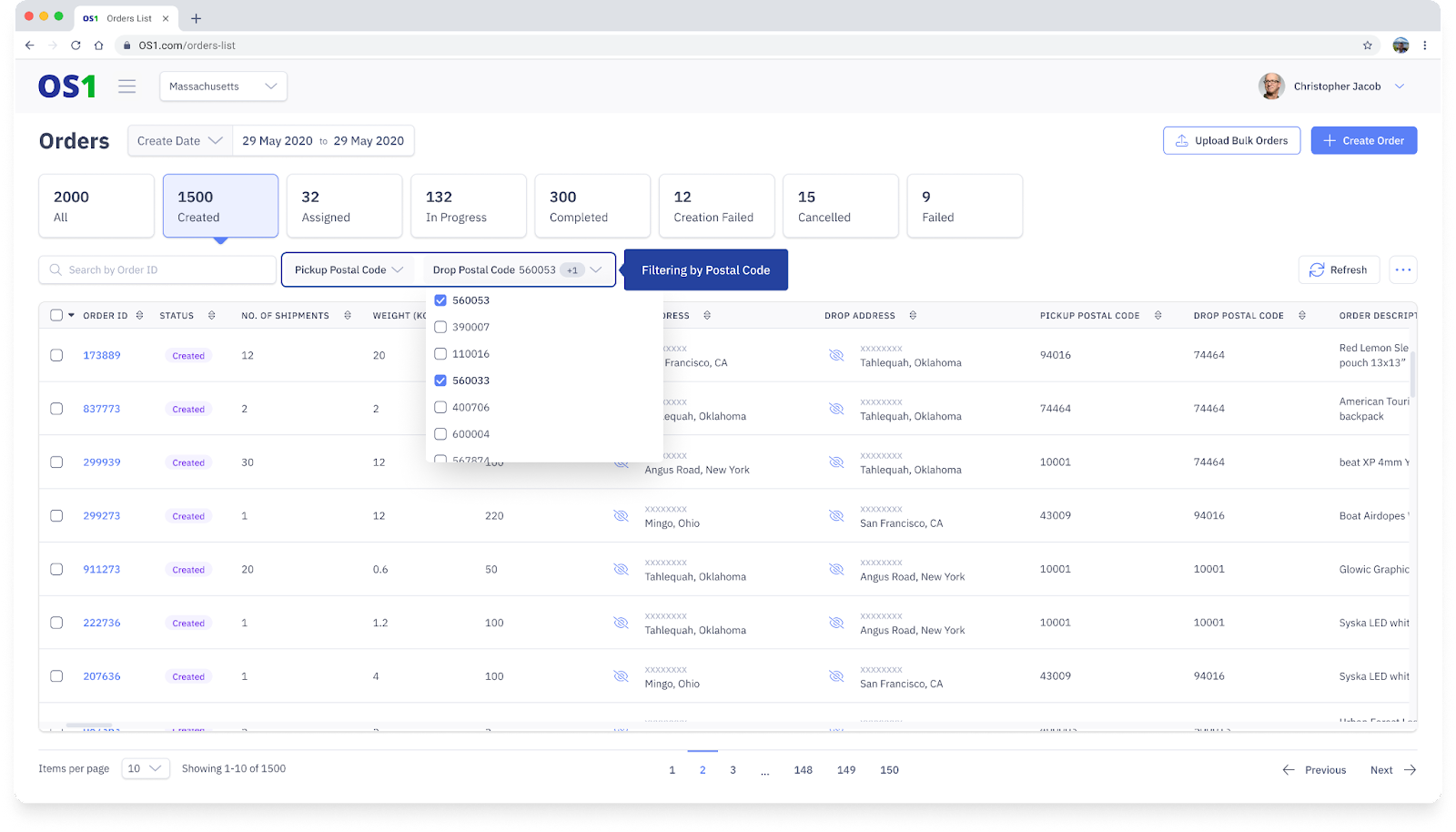
Once orders are created, you can view all the orders on the Order Listing Page. Click on "Orders" from the left sidebar and you will land on the "Order Listing Page".
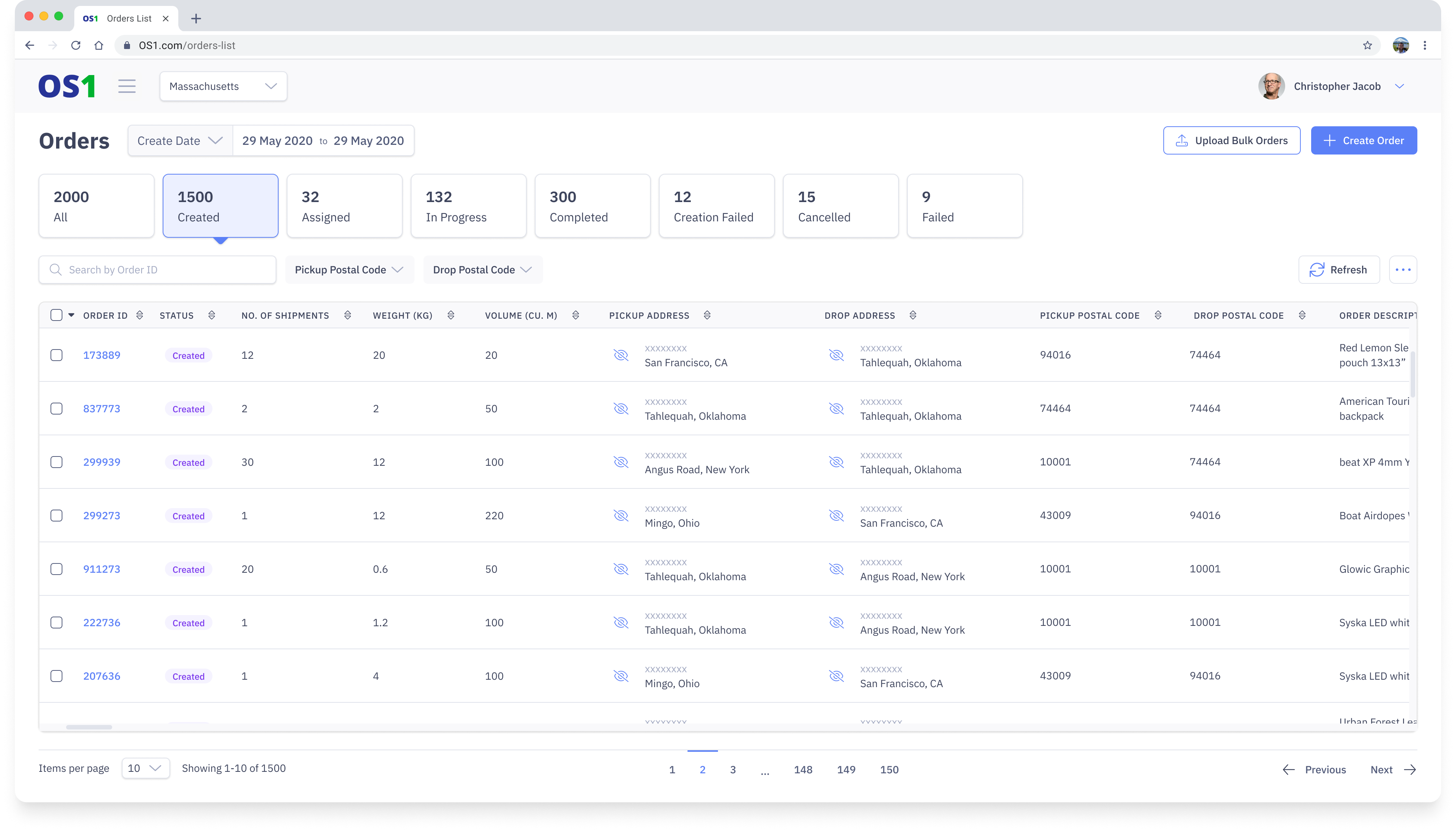
Here, in the table, you will see a list of all the orders created, the status of each order, along with the details of the order. By default, you will see all the orders created in the last 24 hours but you can change the interval by selecting the date range on the "Created Date" field above the order table.
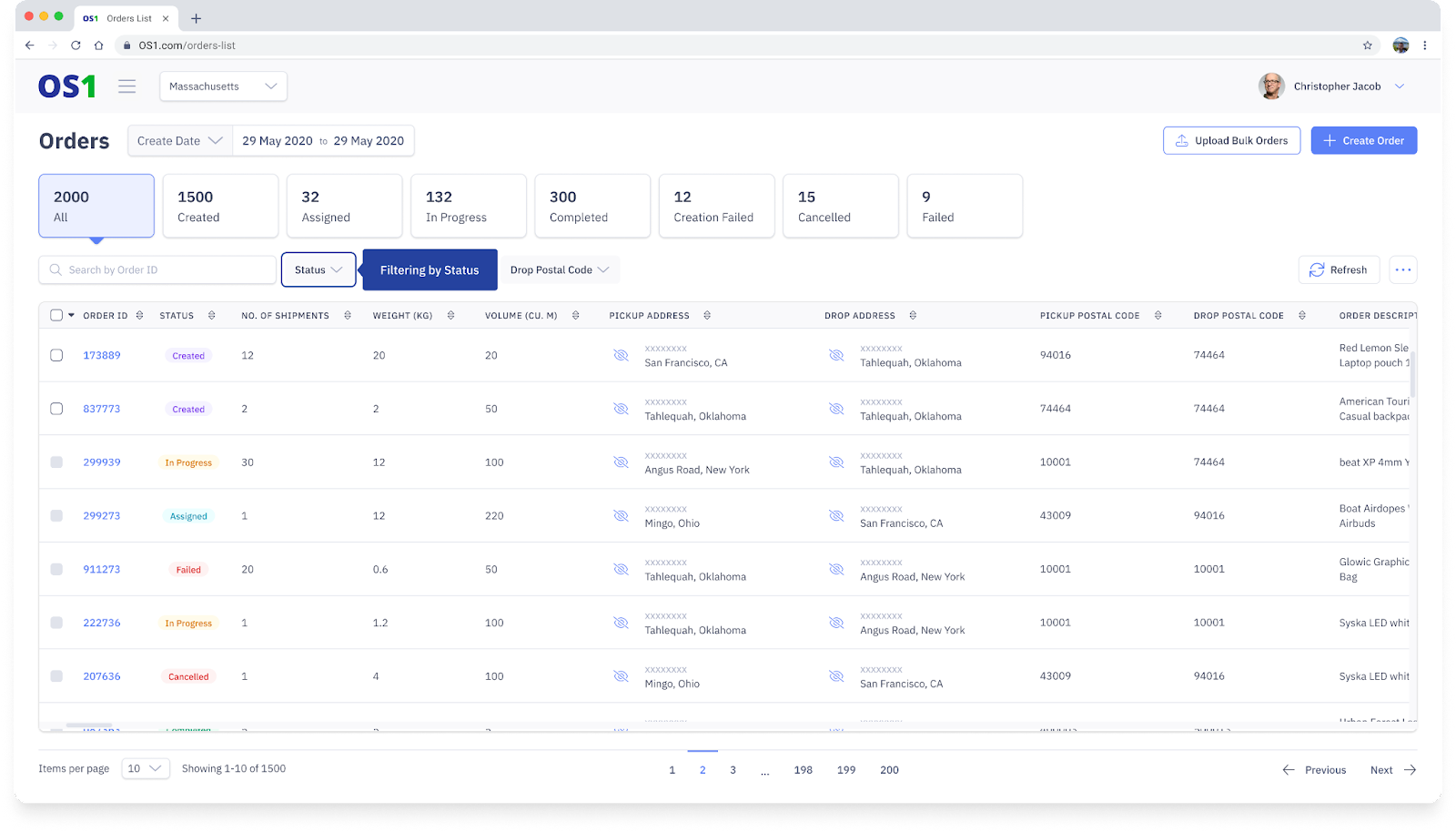
Filtering Orders with Status
You can filter orders using the Smart Filters above the order table. The Smart Filters filter orders based on their status. By default, below are the various statuses of an order:
- Created: the order has been successfully created, but not allocated to any dispatch or driver
- Assigned: the order has either been added to a dispatch or part of a plan on Route Optimizer
- In progress: the order has been added to a dispatch and the dispatch has started
- Completed: the order has been successfully delivered
- Creation Failed: order could not be successfully created
- Cancelled: the order has been explicitly cancelled by you
- Failed: pickup or delivery of the order was unsuccessful, e.g. if the consignee was unavailable
You can select the status of the orders you want to see from the smart filters so all the corresponding orders are listed on the order table.
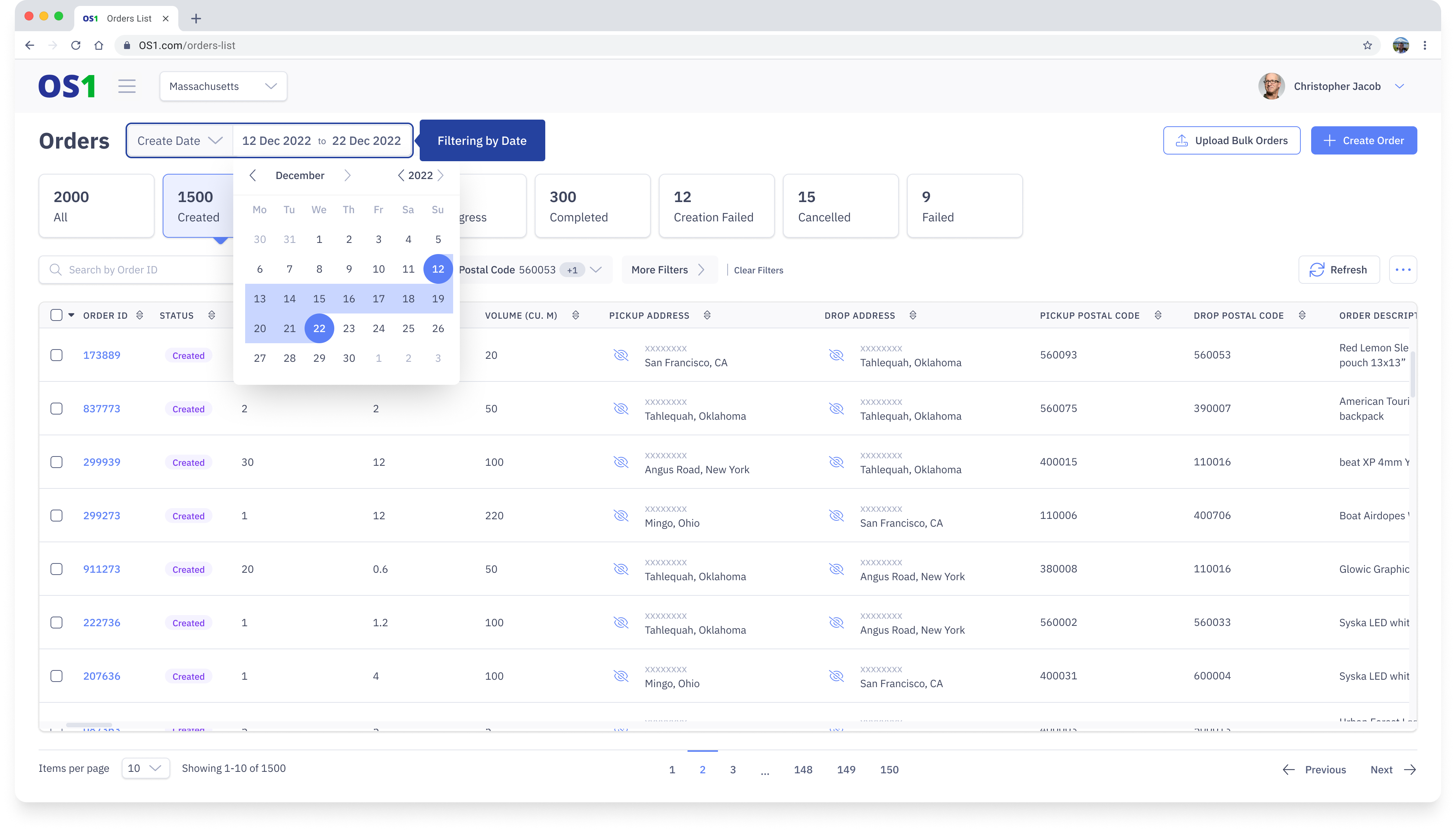
Filtering Orders by Date
With OS1, you can easily get details of any current or past orders. Using Date Filters, select a range of dates and it will show you all the orders between those dates.
Filtering Orders with Postal Code
You can also filter orders using a pickup and drop postal codes
Searching for an Order
You can search for any order from the table by entering the Order ID in the search bar above it