
Creating and Managing Vehicle
A vehicle refers to the mode of transportation that is used for the movement of goods, materials, or people within the supply chain. The vehicles are based on the vehicle Models created. Team Managers assign orders to the most suitable vehicles based on the order size, delivery location, and the capacity of the vehicle. This ensures that the orders are delivered efficiently and on time while reducing the number of trips made and the overall costs.
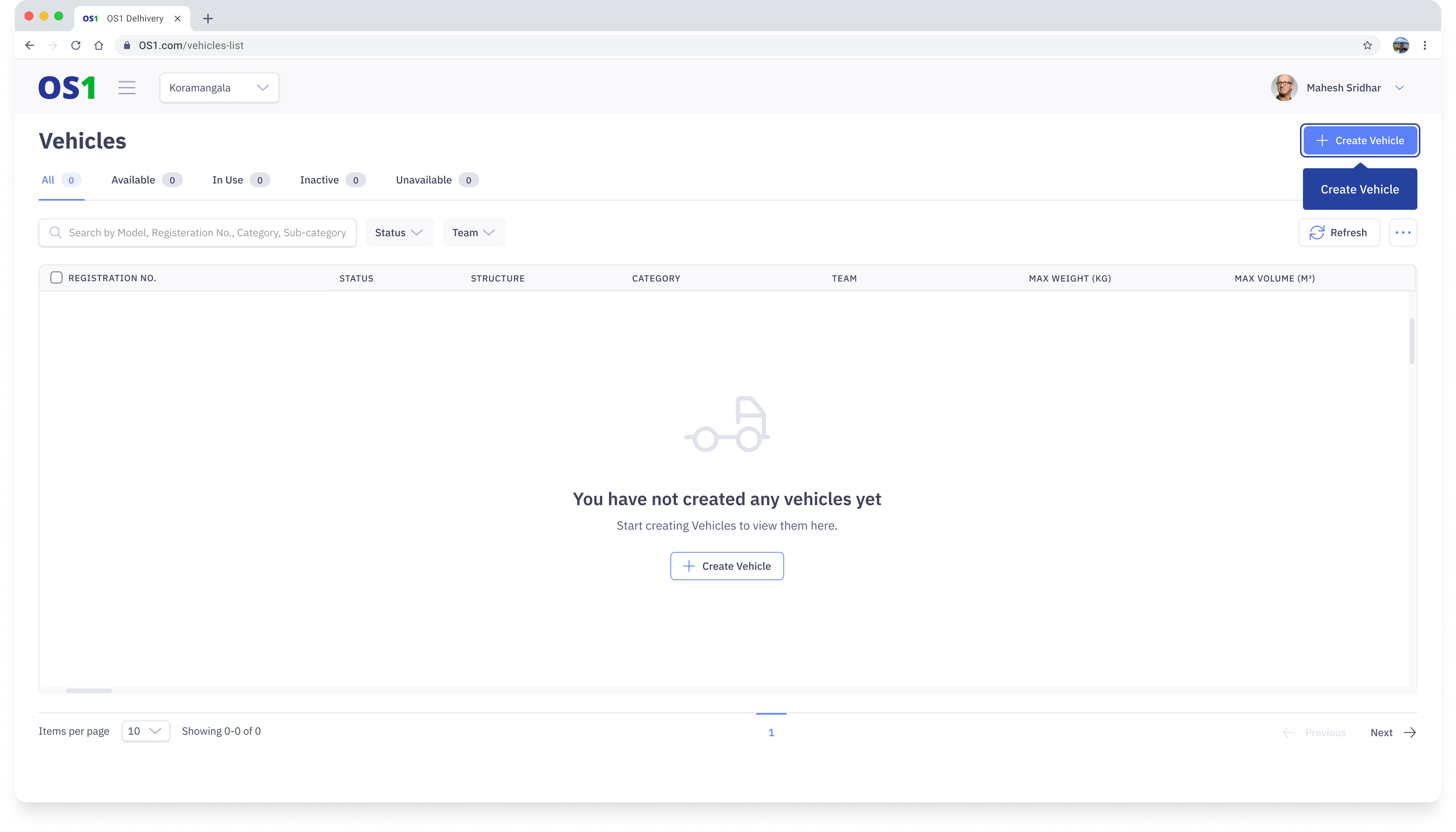
To access the Vehicles page, simply click on the “Vehicles” application located in the side navigation menu. Once on the Vehicles page, you will be able to perform various actions, including:
- Creating new Vehicles using the “Create Vehicle” button
- Viewing a list of all existing Vehicles in the system
- Editing the information of an existing Vehicle using the “Edit” button
- Searching for a specific Vehicle by its Registration ID, Model Name, and Category
- Filtering the Vehicle list based on Status and Teams
- Modifying the columns that you see on the Vehicles table
- Updating the status of vehicles using the status update feature
Create Vehicle
To create a Vehicle in the system, navigate to the Vehicles page and click on the "Create Vehicle" button located in the top right corner of the page. This will take you to the Create Vehicle page, where you need to enter the following information:
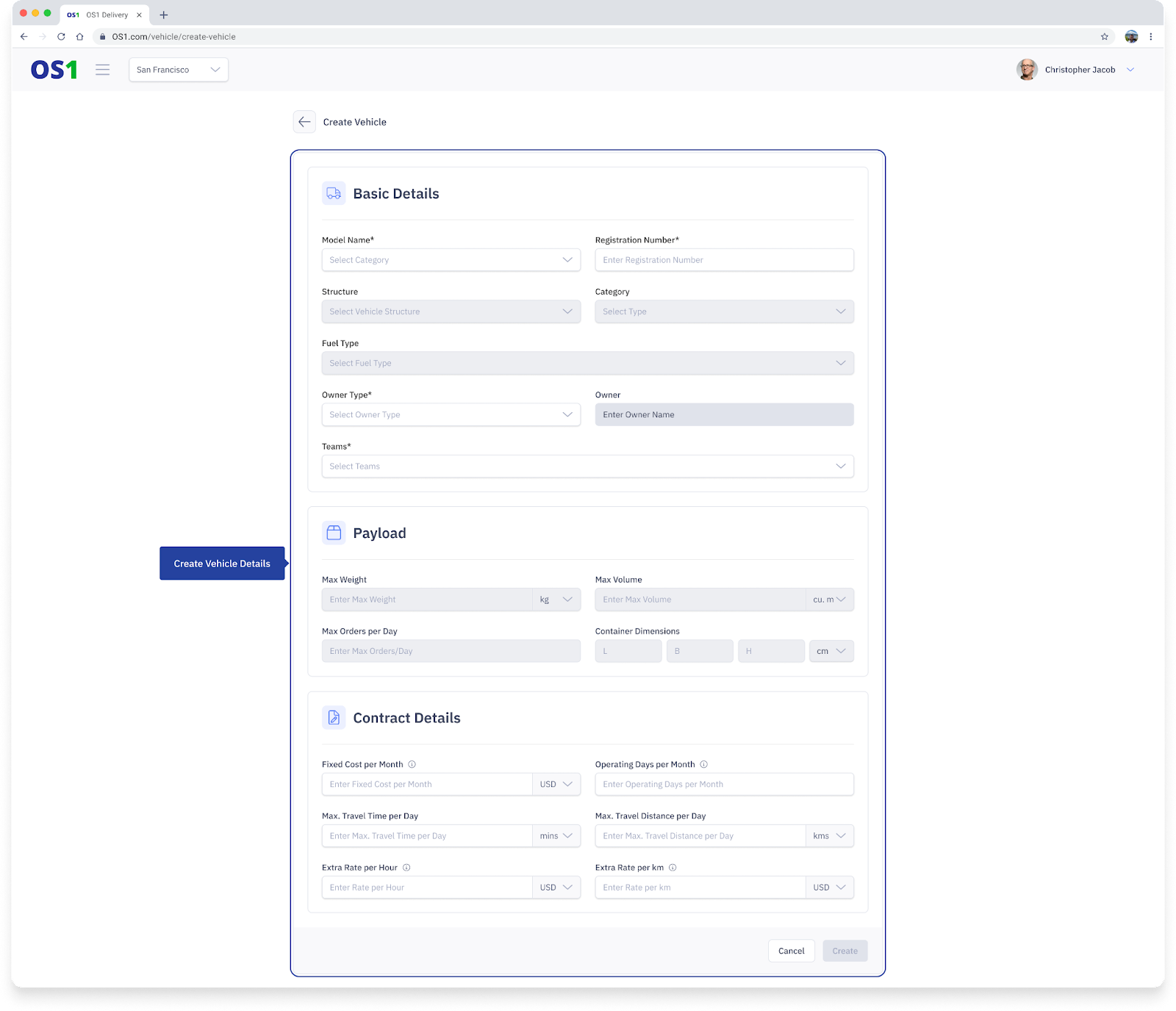
1. Basic Details:
- Model Name: From a dropdown, select the model or make of the vehicle you want to create in the system. If there is no Vehicle Model already created, click on “Create New Vehicle Model” in the dropdown to create a new Vehicle Model.
- Registration Number: Enter the registration number of the Vehicle you want to create. In case, there is no registration number then enter a unique ID
- Structure: Based on the Model selected, the Structure is prefilled
- Category: Based on the Model selected, the Category is prefilled
- Fuel: Based on the Model selected, the Fuel Type is prefilled
- Owner Type: Select the type of owner of this vehicle from a list. The owner can be the Organization or the Driver (Operator) or a Third-party/Leased vehicle
- Owner: If the Owner Type is "Operator", then you can select the Driver from the dropdown
- Teams: Select one or multiple teams to which this vehicle should be associated. This enables those teams to utilize this vehicle during dispatch creation
2. Payload
The Payload information will be associated with the vehicles created and will be used while planning dispatches. The values are inherited from the Vehicle Model and cannot be edited at a Vehicle level. All the below fields will be disabled once the Model is selected.
- Maximum weight: This is the maximum weight the vehicle is allowed to carry
- Maximum volume: This is the maximum volume the vehicle is allowed to carry
- Maximum orders per day: This is the maximum number of orders the vehicle is allowed to carry in a calendar day
- Vehicle Dimensions: This captures the length, breadth, and height of the vehicle's container space so that only the right orders are dispatched on the vehicles
3. Contract Details:
The Contract details will be associated with the vehicles and will be used while planning dispatches specifically while using Route Optimizer. The default values are inherited from the Vehicle Model and will be populated once the Model is selected. The values can be edited if required at the vehicle level.
- Fixed cost per month: This field captures the total fixed cost for a month for the vehicle. This cost is further used to figure out if this is the right vehicle to be used for a dispatch
- Number of operating days per month: This field captures the total operating days for a month for the vehicle. This value works in conjunction with the Fixed cost per month.
- Maximum travel time per day: This field captures the maximum travel time per day for the vehicle. This is a constraint that will be used while generating optimized routes using Route Optimizer
- Maximum travel distance per day: This field captures the maximum travel distance per day for the vehicle. This is a constraint that will be used while generating optimized routes using Route Optimizer.
- Extra rate per hour: This field captures the overtime amount payable to the vehicle. This value works in conjunction with the Fixed cost per month.
- Extra rate per unit distance travelled: This field captures the amount payable for the extra distance travelled by the vehicle. This value works in conjunction with the Fixed cost per month
After entering all the required information, you can create the Vehicle by clicking the "Create" button.
View Vehicles
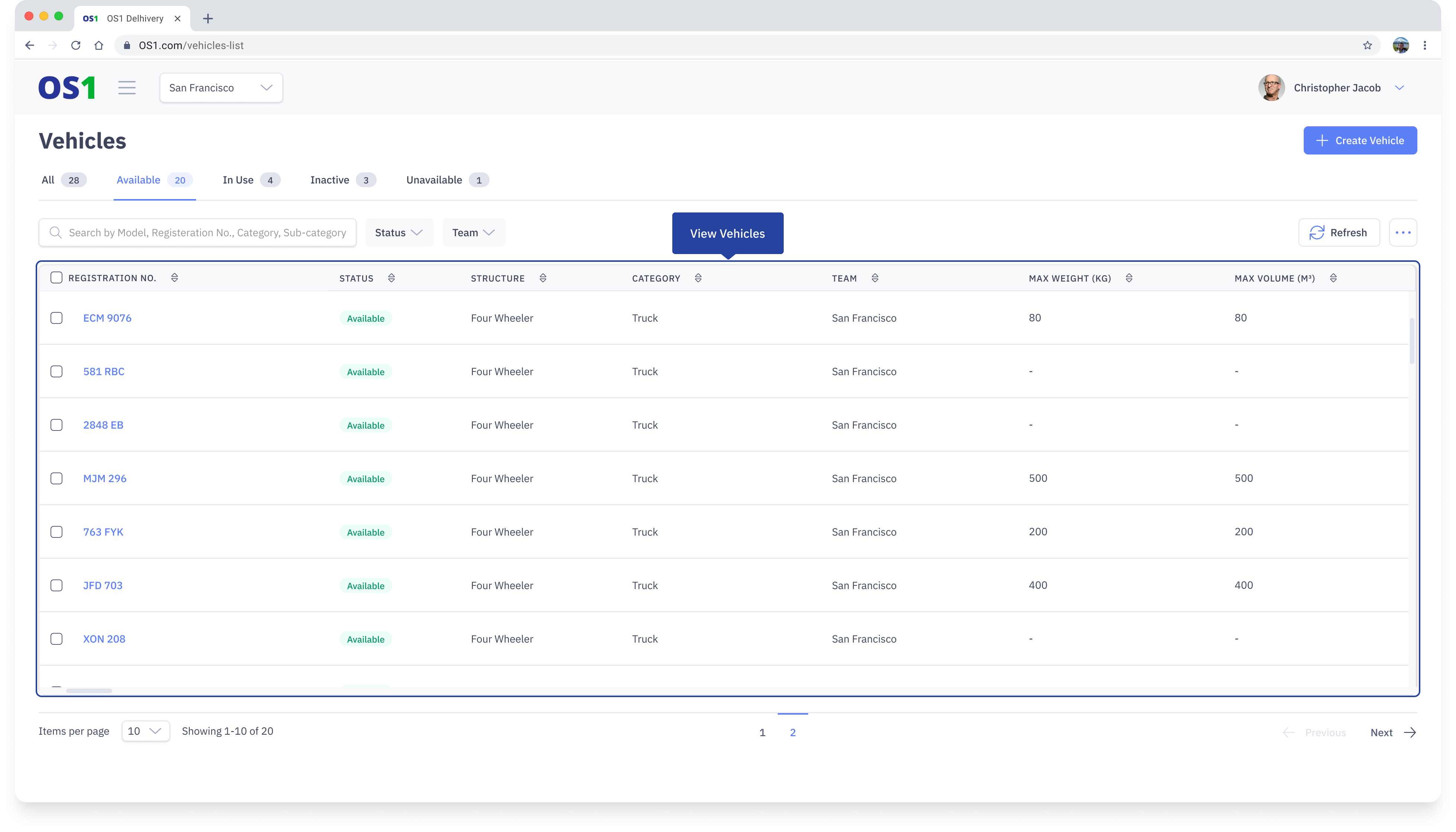
Once you have created a Vehicle, you can see the list of all the created Vehicles on the Vehicles Listing page. You can see the following information about each vehicle in the table:
- Registration Number
- Model Name
- Status: The Vehicle's status indicates its availability and helps you find the right vehicle for fulfilling your order. There are 4 possible statuses of a Vehicle:
- Onboarding: When a Vehicle is created, the Vehicle is moved to an onboarding state. The Vehicle cannot be used for any dispatches in this state. The Vehicle has to be in the available state
- Available: This status means the Vehicle is available for assignment
- In Use: This status indicates that the Vehicle is already assigned to a dispatch and cannot be used for any other dispatch. As soon as the current dispatch is complete, the status will move back to Available
- Unavailable: <<to be filled>>
- Inactive: This status means the Vehicle is unavailable and cannot be used for any dispatch
- Structure
- Category
- Teams: This column shows the Teams the Rider is associated with
- Maximum Weight
- Maximum Volume
There are other fields that can be added to the table by modifying the columns. The available fields are Created At, Updated At, Created By, Updated By, Owner Type, Owner Name, Dimensions, Maximum Number of Orders, Fixed Cost per Month, Rate per KM, Rate per Hour, Travel Time Max, and Distance Travelled (KMs).
To view the full details of any Vehicle, click on the Vehicle ID to open the Vehicle Details page.
Edit Vehicles
To edit a Vehicle, you can either:
- Click on the Edit button in the last column of the Vehicle table, OR
- Click on the Edit button on the top right corner of any Vehicle Details page
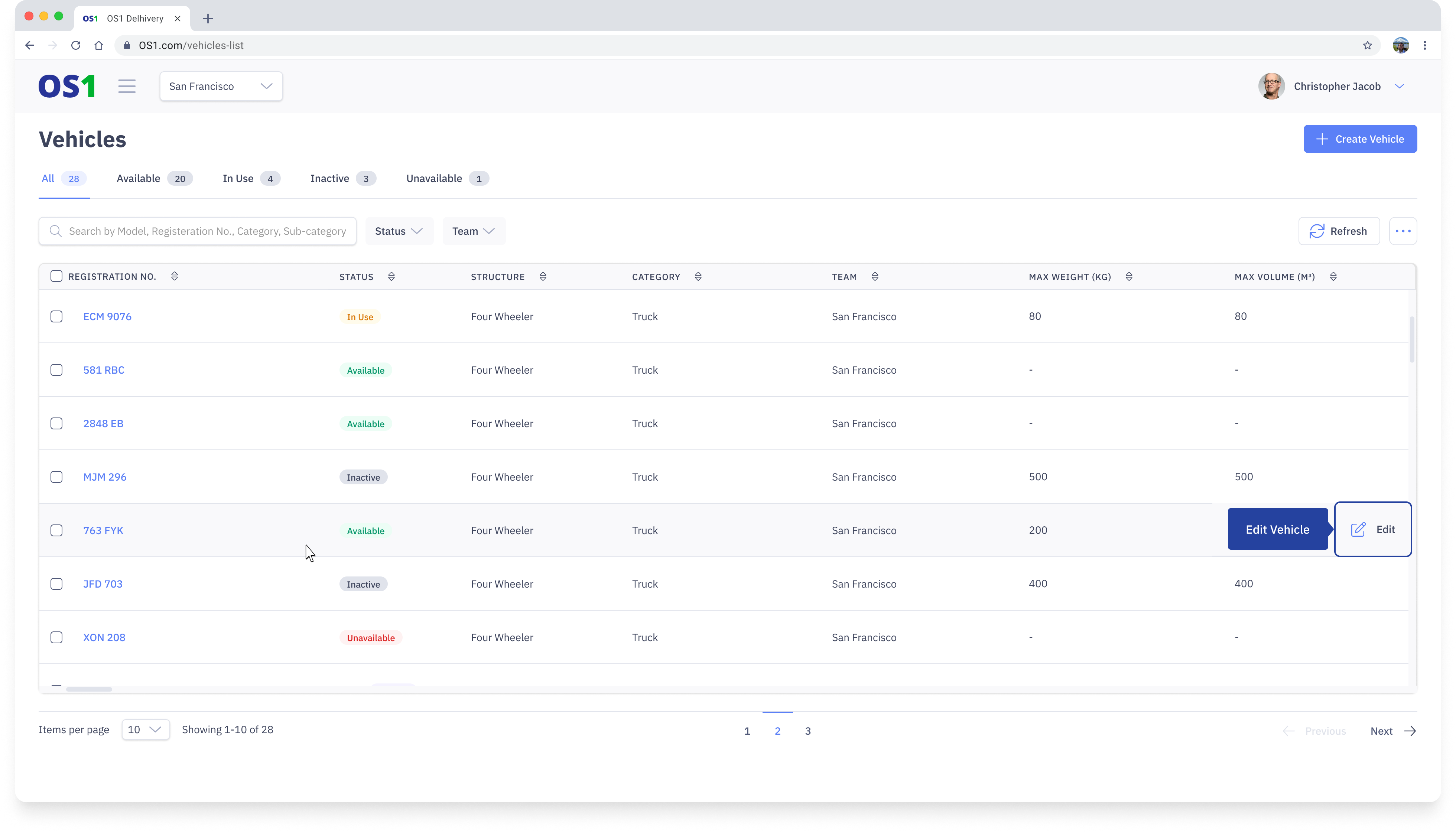
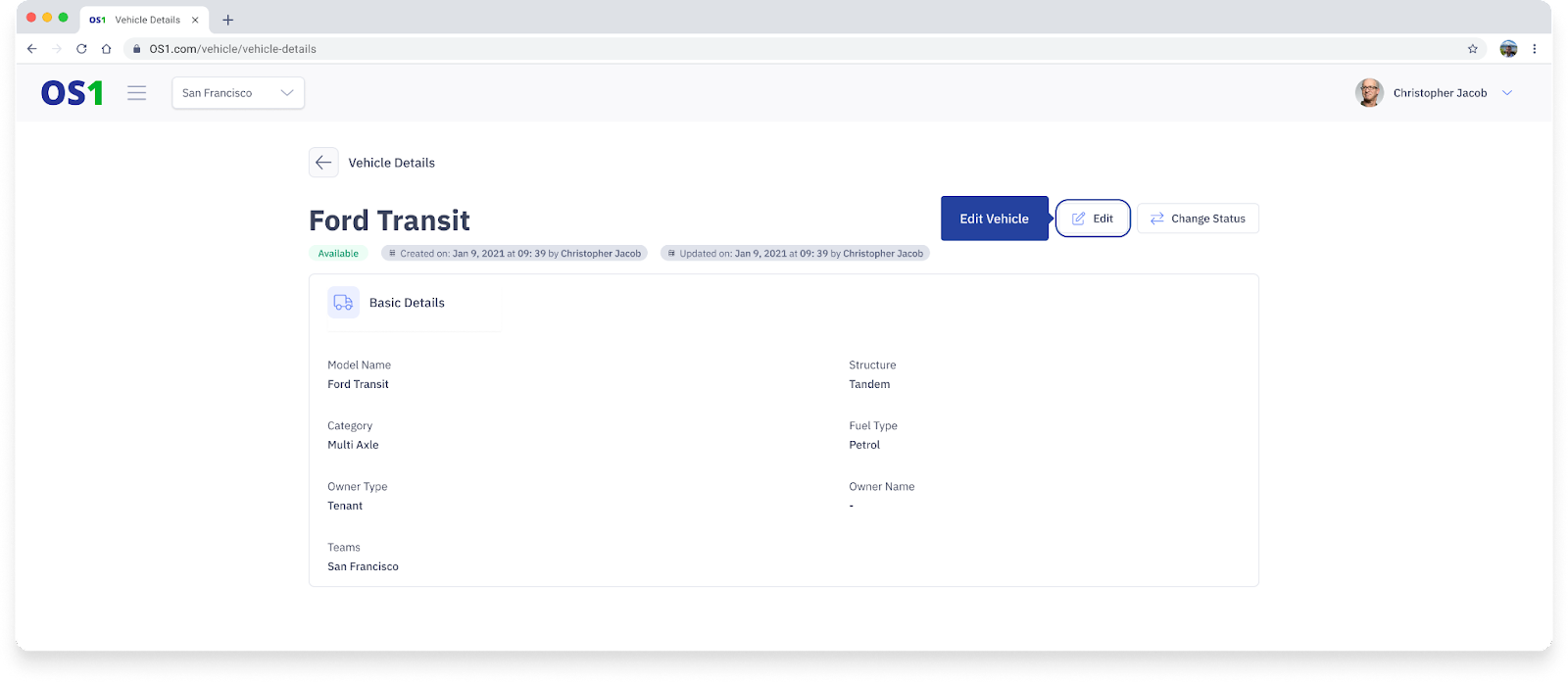
This will open up the Edit Vehicle page where you can make the necessary updates to the vehicle details. After you have made the desired changes, click on the Save button to save and update the Vehicle details.
Search Vehicle
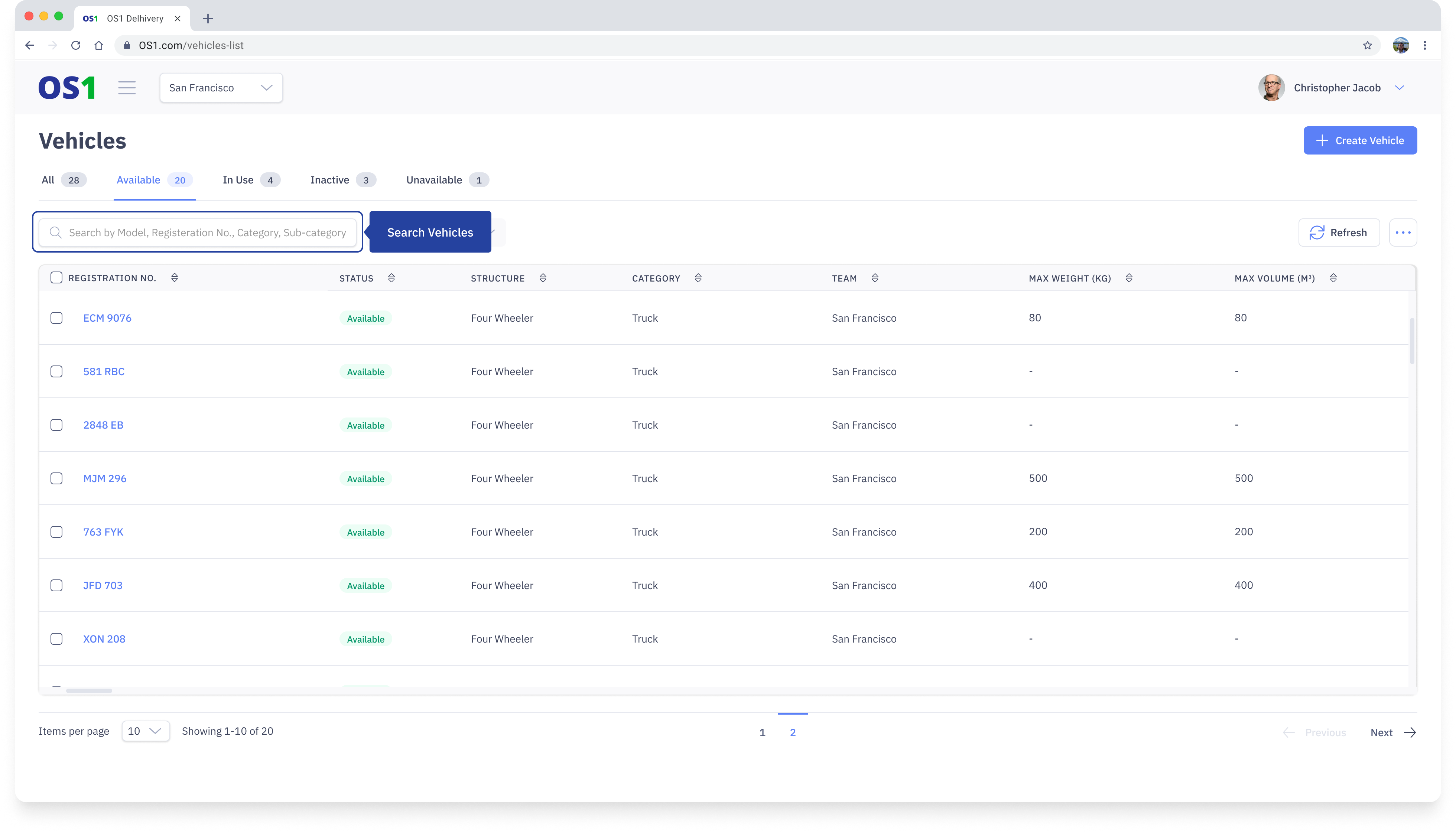
To search for a Vehicle, enter the Registration Number, Model, or Category in the search bar on the Vehicles Listing page.
Vehicle Status Update
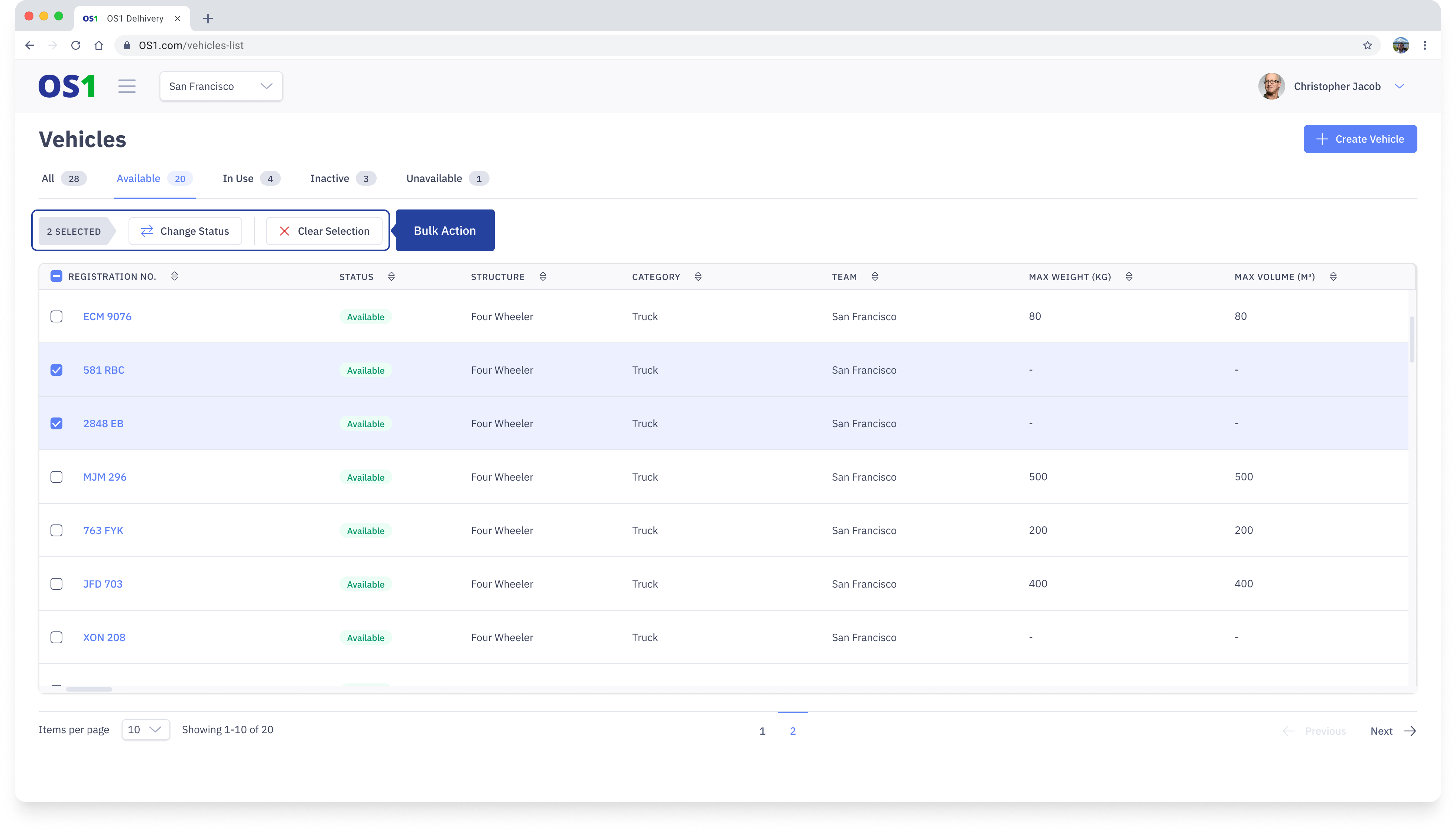
You can also update the status of a single vehicle or multiple vehicles from the Vehicles Listing page. To do this:
- Select the checkboxes next to each Vehicle ID
- After selecting the checkboxes, a "Change Status" button will appear above the table. Click on it, and a pop-up will appear, prompting you to select the new status to which you want to update the selected records
- Once you have selected the new status from the dropdown menu, click on the "Save" button to apply the changes to the selected records