
Creating and Managing Facilities
A facility is any physical building where any transportation, logistics operations, storage, or distribution of goods take place. Creating facilities simplifies order creation by avoiding the need to enter the pickup/drop address each time.
To manage your Facilities, click on the “Facilities” application located in the side navigation menu. Here, you will be able to perform various actions, including:
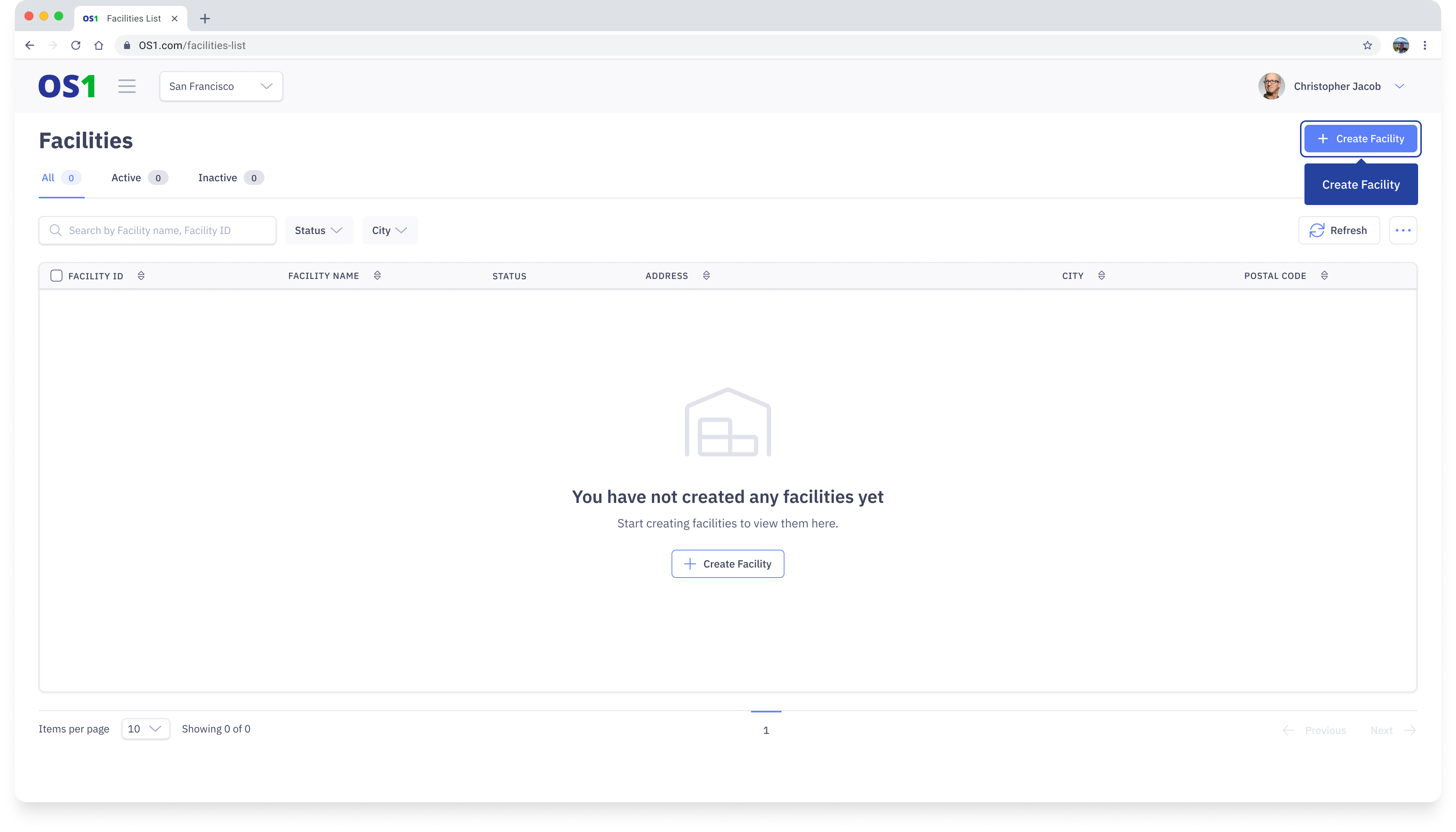
- Creating new Facilities using the "Create Facility” button
- Viewing a list of all existing Facilities in the system
- Editing the information of an existing Facility using the “Edit” button
- Searching for a specific Facility by its Facility Name or Facility ID
- Filtering the Facility list based on status
- Modifying the columns that you see on the Facilities table
- Updating the status of Facilities using the status update feature
Create Facility
To create a Facility on DispatchOne, navigate to the Facilities application and click on the "Create Facility" button located in the top right corner of the page. This will take you to the Create Facility page, where you need to enter the following information:
- Facility Name: Enter the name of the Facility you want to create
- Facility ID: Enter a unique ID for the Facility you want to create. By default, the system will generate a unique Facility ID for you
- Address Details: Enter all the address details of the Facility. The country will be defaulted based on the organization's settings and City and State will be prepopulated based on the Postal Code.
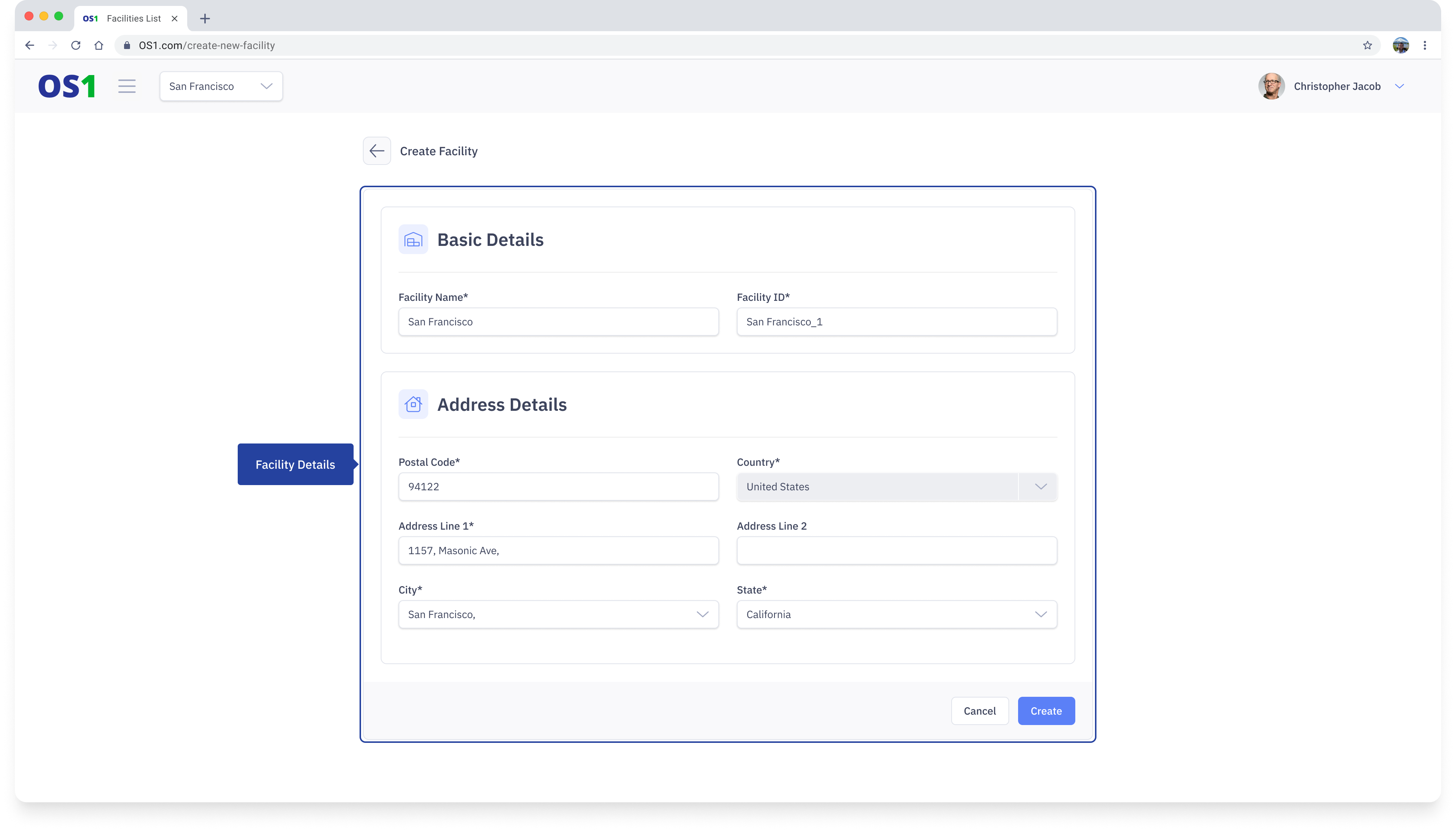
After entering all the required information, you can create the Facility by clicking on the "Create" button.
View Facilities
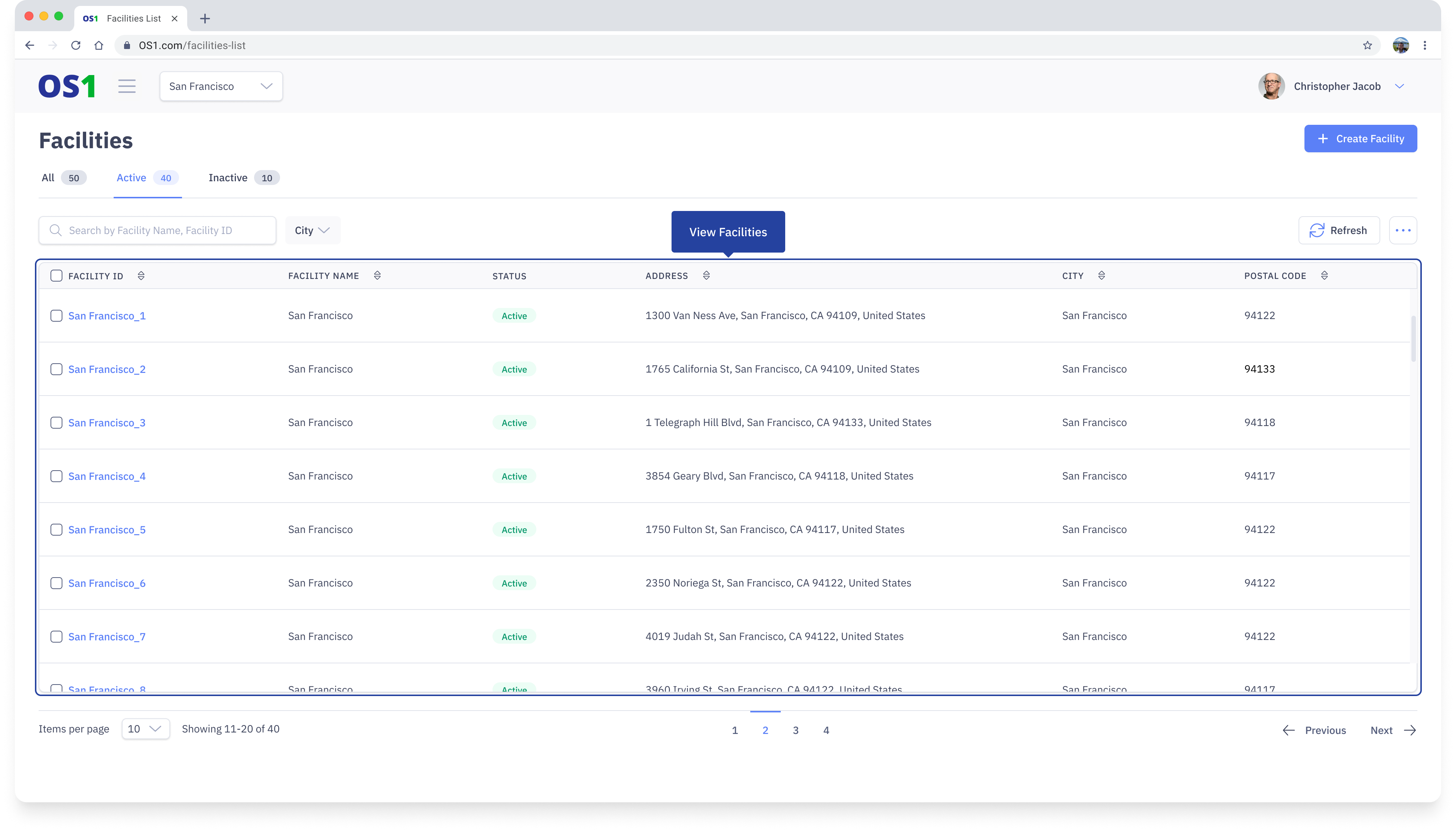
Once you have created a Facility, you can see the list of all the created Facilities on the Facility Listing page. You can see the following information about each facility in the table:
- Facility ID
- Facility Name
- Status: A Facility can be in an “Onboarding”, “Active” or “Inactive” state
- Address
- City
- State
- Postal Code
- Created At (hidden by default)
- Updated At (hidden by default)
- Created By (hidden by default)
- Updated By (hidden by default)
To view the details of any Facility, click on the Facility ID to go to the Facility Details page.
Edit Facility
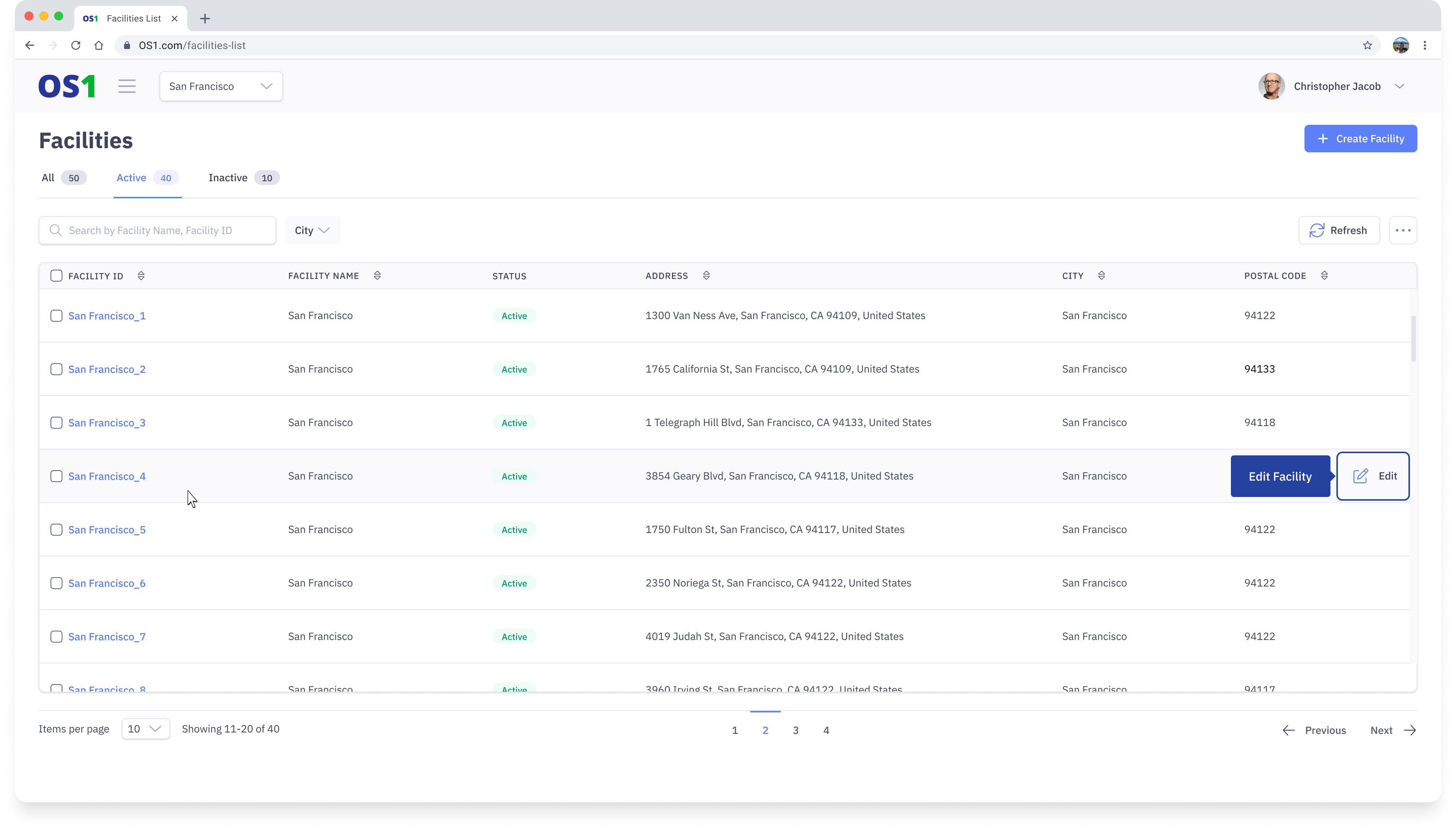
To edit a Facility, you can either:
- Click on the Edit button in the last column of the Facility table, OR
- Click on the Edit button on the top right corner of any Facility Details page
This will navigate you to the Edit Facility page where you can make the necessary updates to the facility information. After you have made the desired changes, click on the Save button.
Search Facility
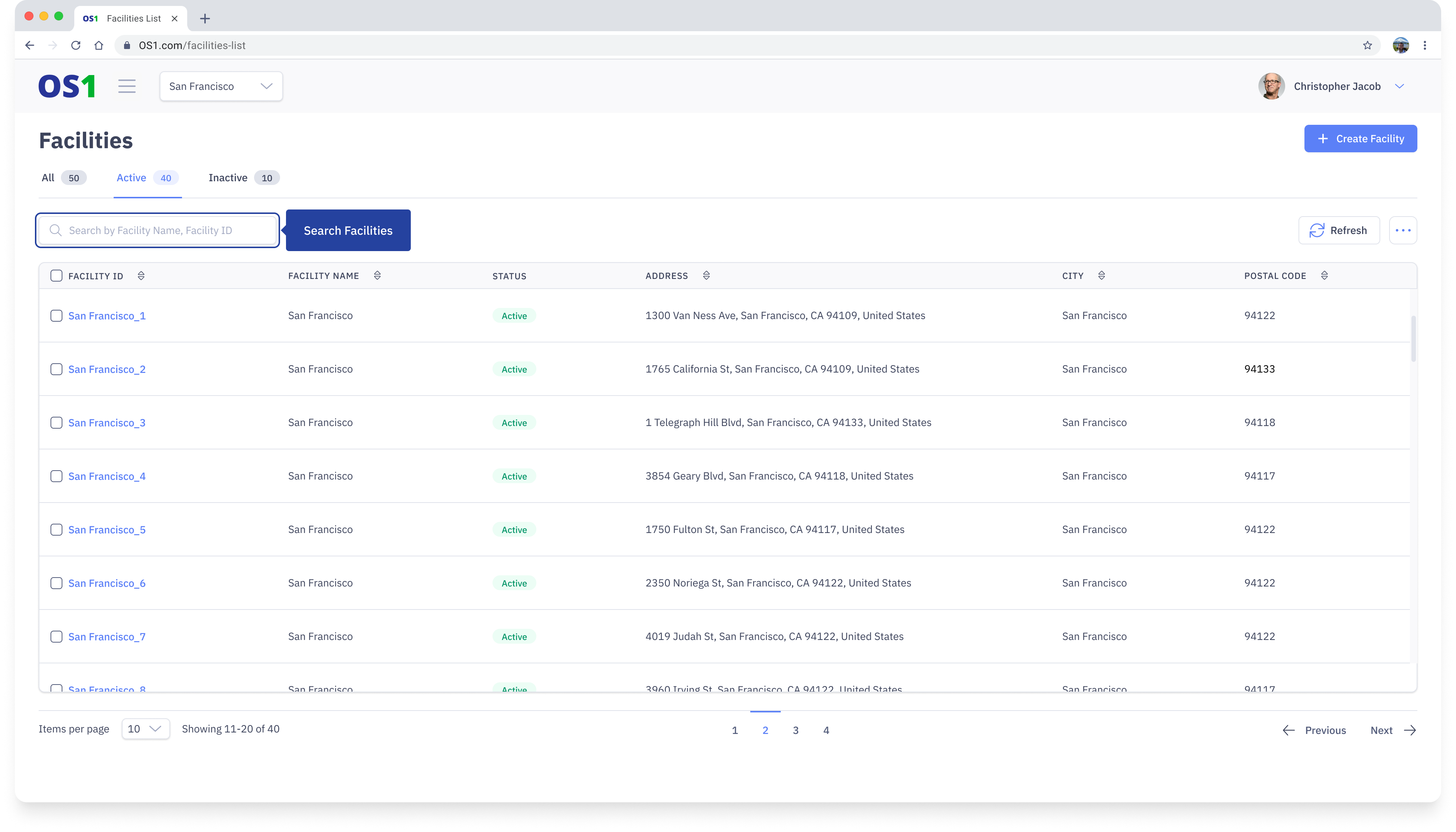
To search for a Facility, enter the Facility ID or Facility Name in the search bar on the Facility Listing page.