Creating Dispatches
Once you have created orders, you can plan for fulfilling the orders by adding them to a dispatch and assigning a driver. A driver is a crucial member of your team who will fulfil the order on the field. You can assign multiple orders to a dispatch, depending on the workload and the capacity of the driver and vehicle associated with the dispatch.
Creating Dispatch from Order Listing Page
In order to create a dispatch from the order listing page, follow the below steps:
1. Select all the orders you want to add to a dispatch by selecting the checkboxes against the desired orders in the order table
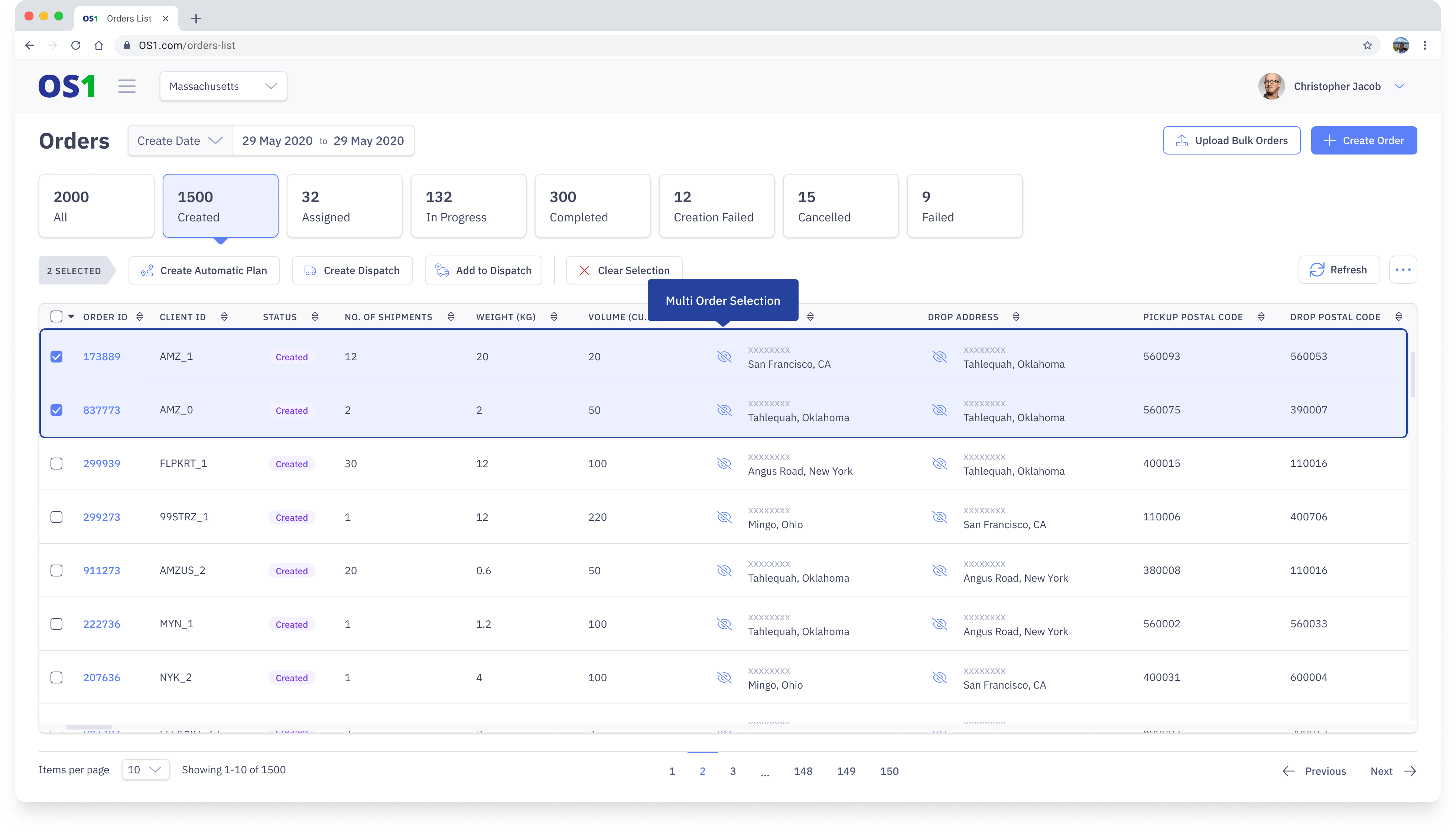
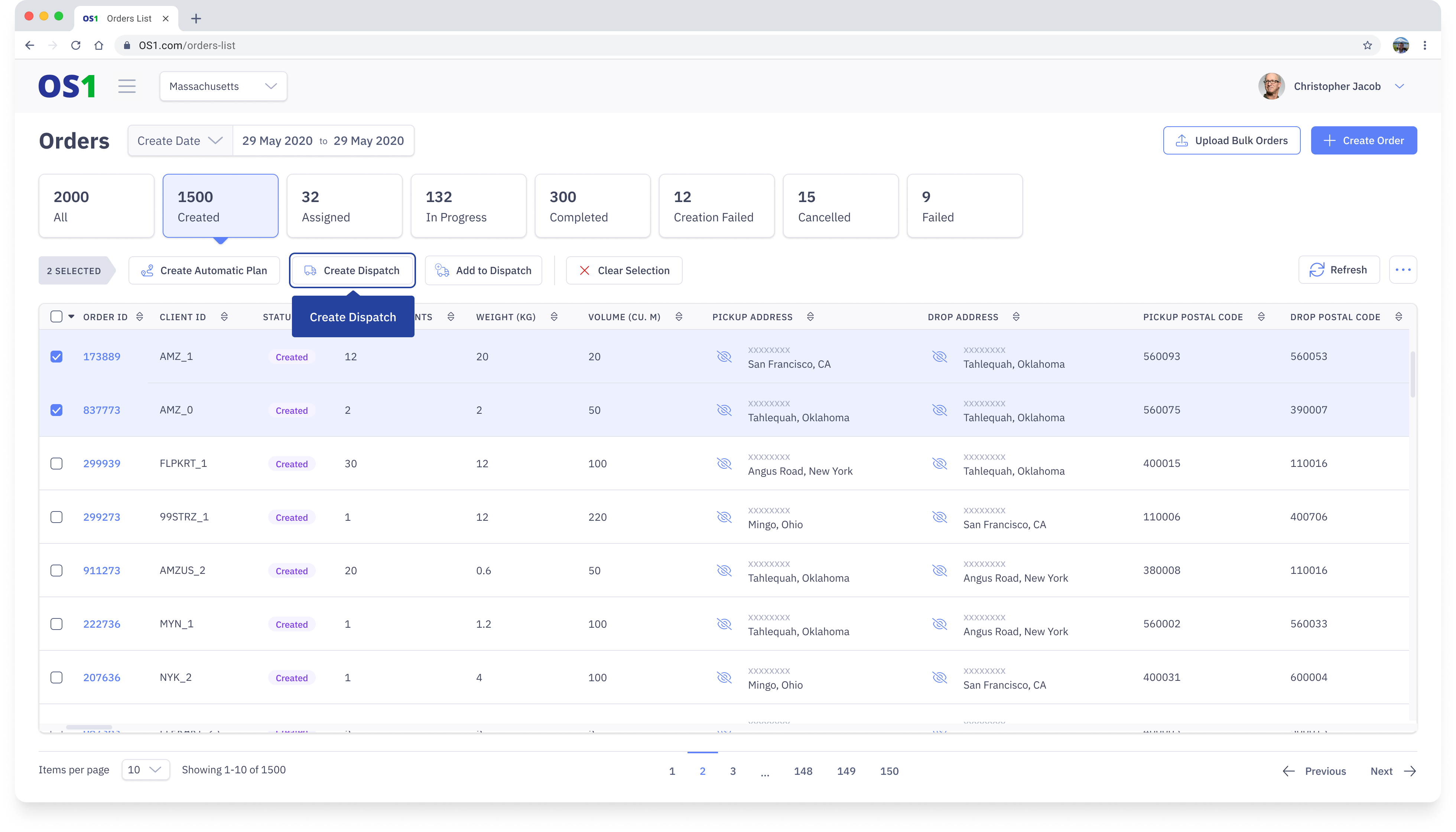
2. Then, click on “Create Dispatch”
3. In the "Create Dispatch" modal, the Dispatch ID is a unique identifier of the dispatch and is auto-populated by DispatchOne. In case you want to define your own dispatch ID you can change the value
4. In the "Create Dispatch" modal, select the vehicle (by selecting the category and sub-category) and then select the driver from the "Rider" dropdown
Note: You will see only see a list of vehicles and drivers who are currently available. Also, note that you can add any number of vehicles and riders to a single dispatch
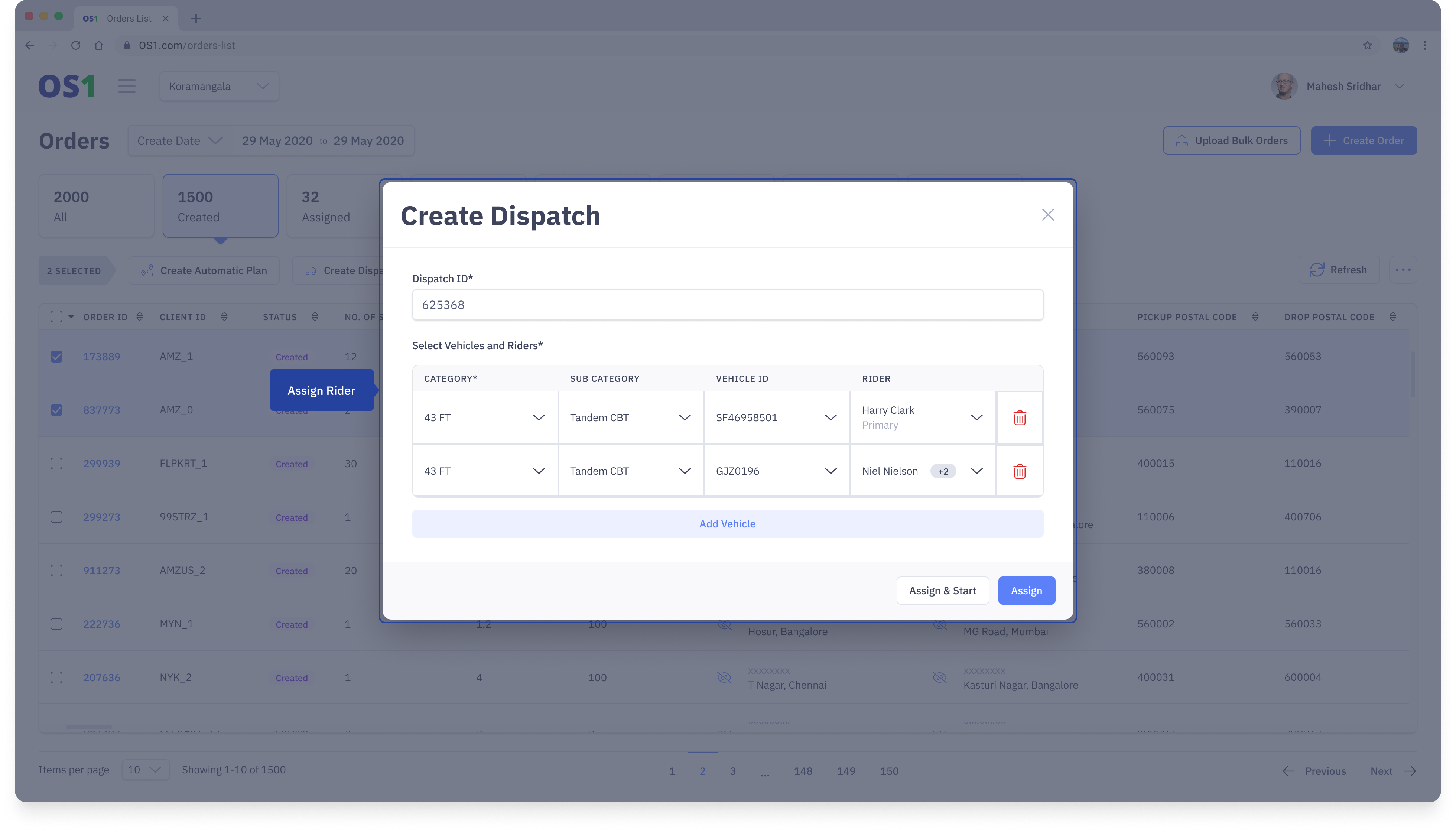
4. Once you have selected vehicles and drivers, you can either:
Click ‘Assign and Start’ to directly start the dispatch. Doing this will push the selected orders to the driver chosen, and they will be able to start fulfilling the orders from their app.
Click ‘Assign’ to assign the orders to a dispatch without starting it. You can manually start the dispatch later from the Dispatch page once you have added all the orders. You can use this when you want to start the dispatch at a later time.
Creating Dispatch from Dispatch Listing Page
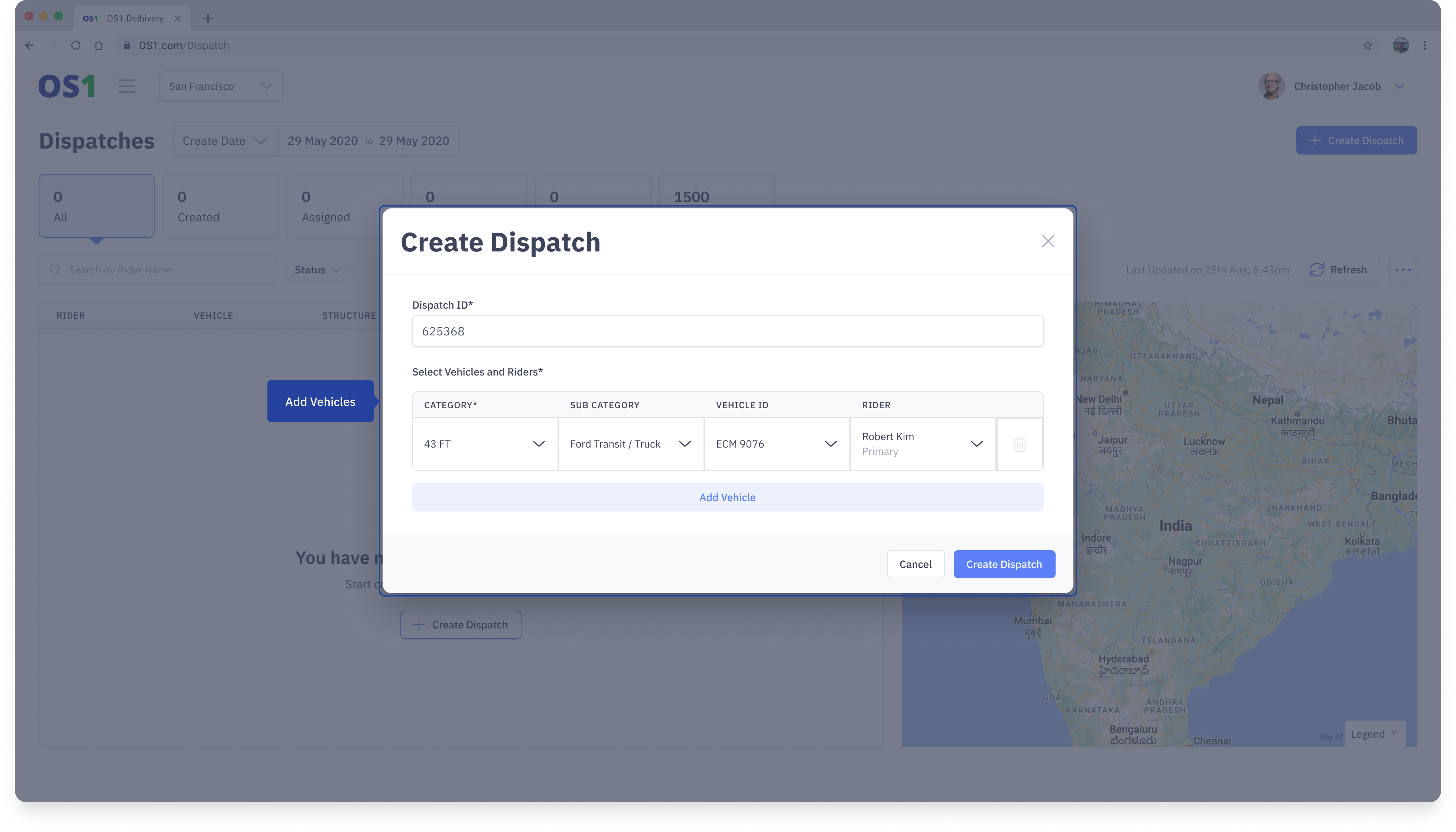
You can also create dispatches without adding any orders to them. You can use this when you want to create empty dispatches and later add orders to them whenever the orders are ready for dispatch. In order to create a dispatch from the dispatch listing page, follow the below steps:
1. Click on the “Dispatch” application on the side navigation menu
2. Click on the “Create Dispatch” button on the top right side of the Dispatch Listing page
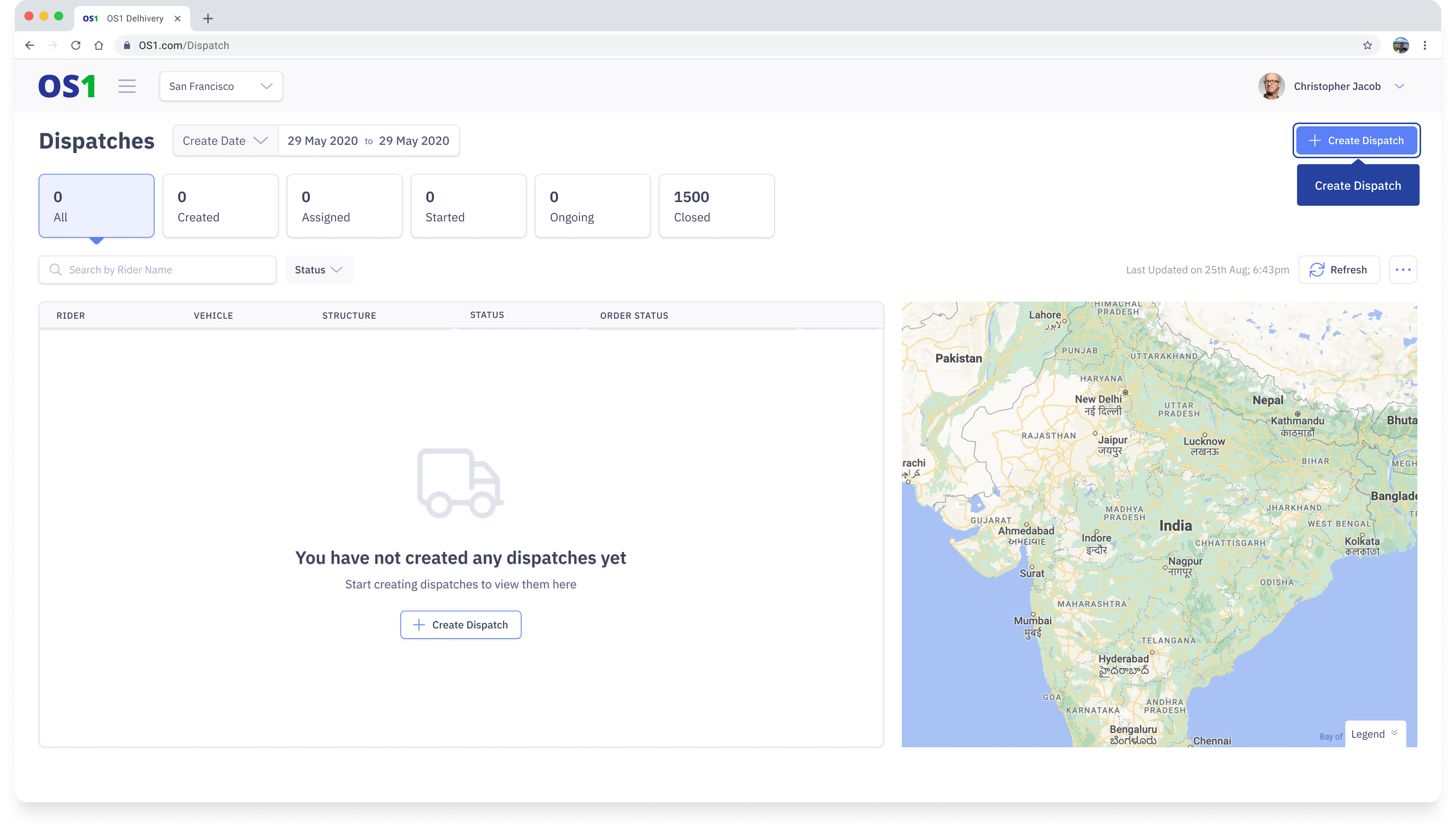
3. In the "Create Dispatch" modal, the Dispatch ID is a unique identifier of the dispatch and is auto-populated by DispatchOne. In case you want to define your own dispatch ID you can change the value
4. In the "Create Dispatch" modal, select the vehicle (by selecting the category and sub-category) and then select the driver from the "Rider" dropdown
Note: You will see only see a list of vehicles and drivers who are currently available. Also, note that you can add any number of vehicles and riders to a single dispatch
5. Click on "Create Dispatch". An empty dispatch will be created and you will be able to see the newly created dispatch on the Dispatch Listing Page.