
Logging in to OS1 Driver App
Once the Driver has downloaded the driver App and opened the App for the first time, it would ask for the various permissions required for the App to function as expected. Ensure the below permissions are enabled for the app to work as expected:
- Select "Allow" for Location Access
- Select "WHILE USING THE APP" for "Allow OS1 Driver App to take pictures and record videos?"
- Select "WHILE USING THE APP" for "Allow OS1 Driver App to access this device's location?"
- Select "Allow" for "Allow OS1 Driver App to make and manage phone calls?"
- Select "Allow all the time" for "Location Permission"
- Select "Allow" for "Allow OS1 Driver App to send you notifications?"
- Select "Allow" for "Allow OS1 Driver App to access photos and videos on this device?"
After all the permissions are given, the driver will see the below landing page. The Driver can follow the below steps to log in to the App.
First, enter the unique organization name assigned to your organization. The Team Manager should pass on the organization name used while registering for DispatchOne. The organization name can be found on the DispatchOne URL "https://<<organization name>>.getos1.com/"
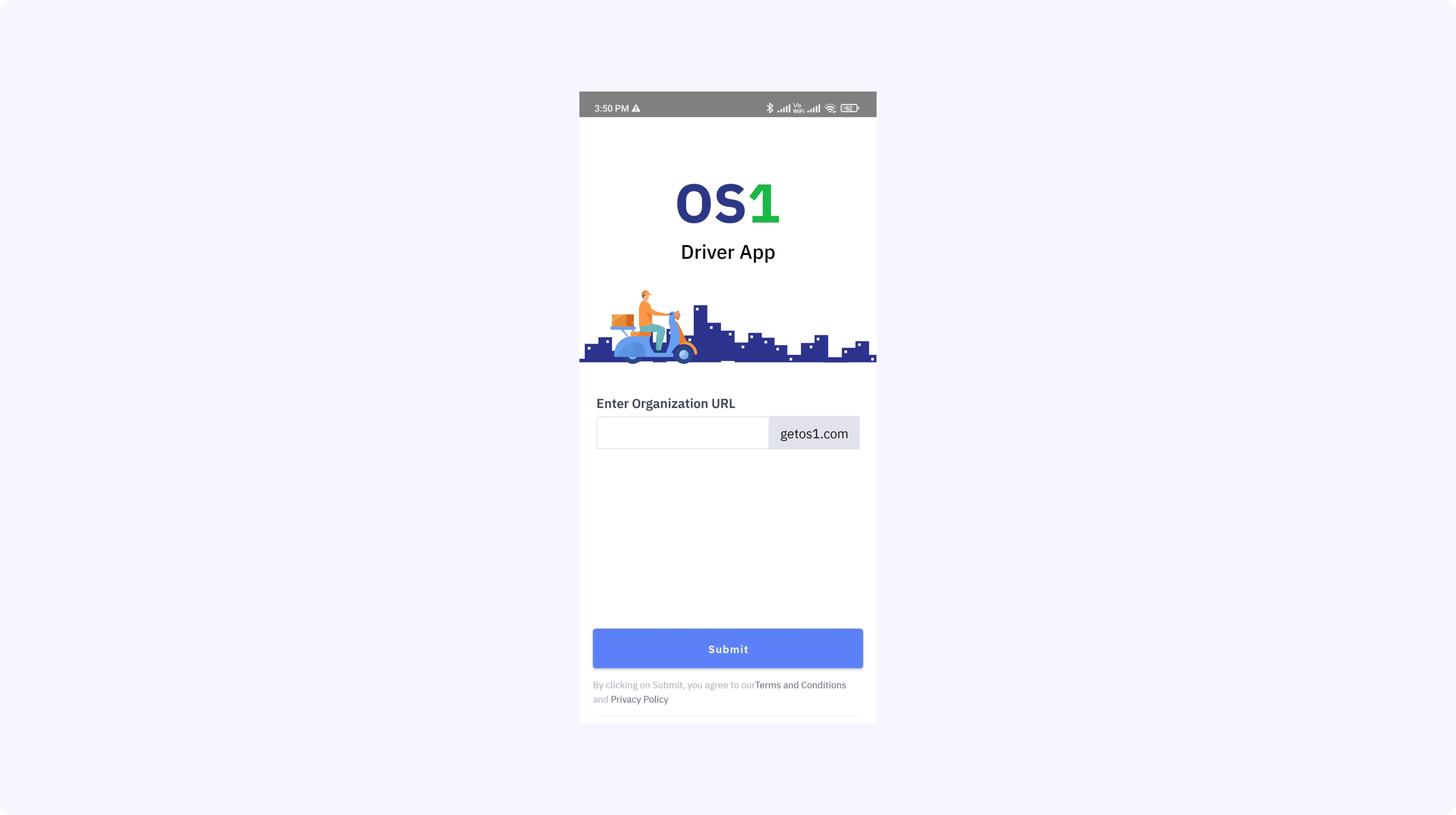
Once the driver has entered the org name and clicked on "Submit", you will be redirected to the sign-in page. Here, the driver can choose to log in using "Login with Email OTP" or "Login with Phone OTP". The driver can choose either of the options to login.
Once selected, the driver will be asked to enter the "email" or "phone number" and click "Send OTP". Once the details are entered, the driver will receive an OTP from DispatchOne.
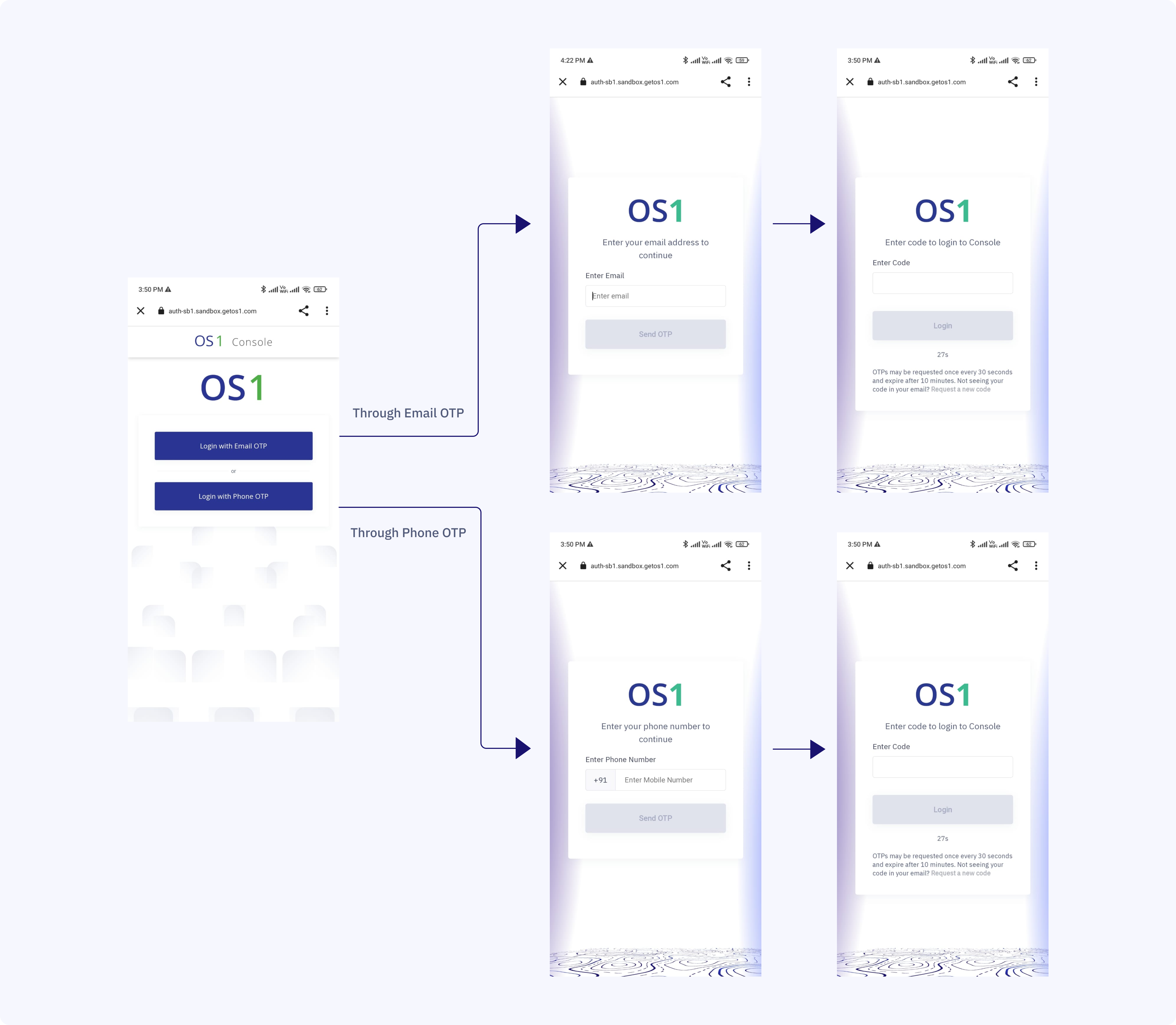
Once the driver receives the OTP, enter the OTP and click "Login"
If the OTP is correct, then the driver will land on the home screen.