
Creating and Managing Vehicle Models
Before creating a vehicle, you need to create a set of Vehicle Models. A vehicle model refers to a predefined representation or specification of a particular type or configuration of a vehicle. It serves as a reference for identifying and categorizing vehicles based on their characteristics, capabilities, and attributes within DispatchOne.
The vehicle model includes information such as the make, model, capacity, dimensions, weight, fuel type, and any other relevant details that help define the characteristics of the vehicle. By defining vehicle models in DispatchOne, you can accurately classify and manage your fleet of vehicles, enabling better operational planning, load optimization, and resource allocation.
To create and manage your Vehicle Models, click on the "Settings" link in the side navigation menu. Under the Settings Page navigate to “Vehicles” and then to "Models". Here, you can perform the following activities:
- Creating new Vehicle Models using the “Create Model” button
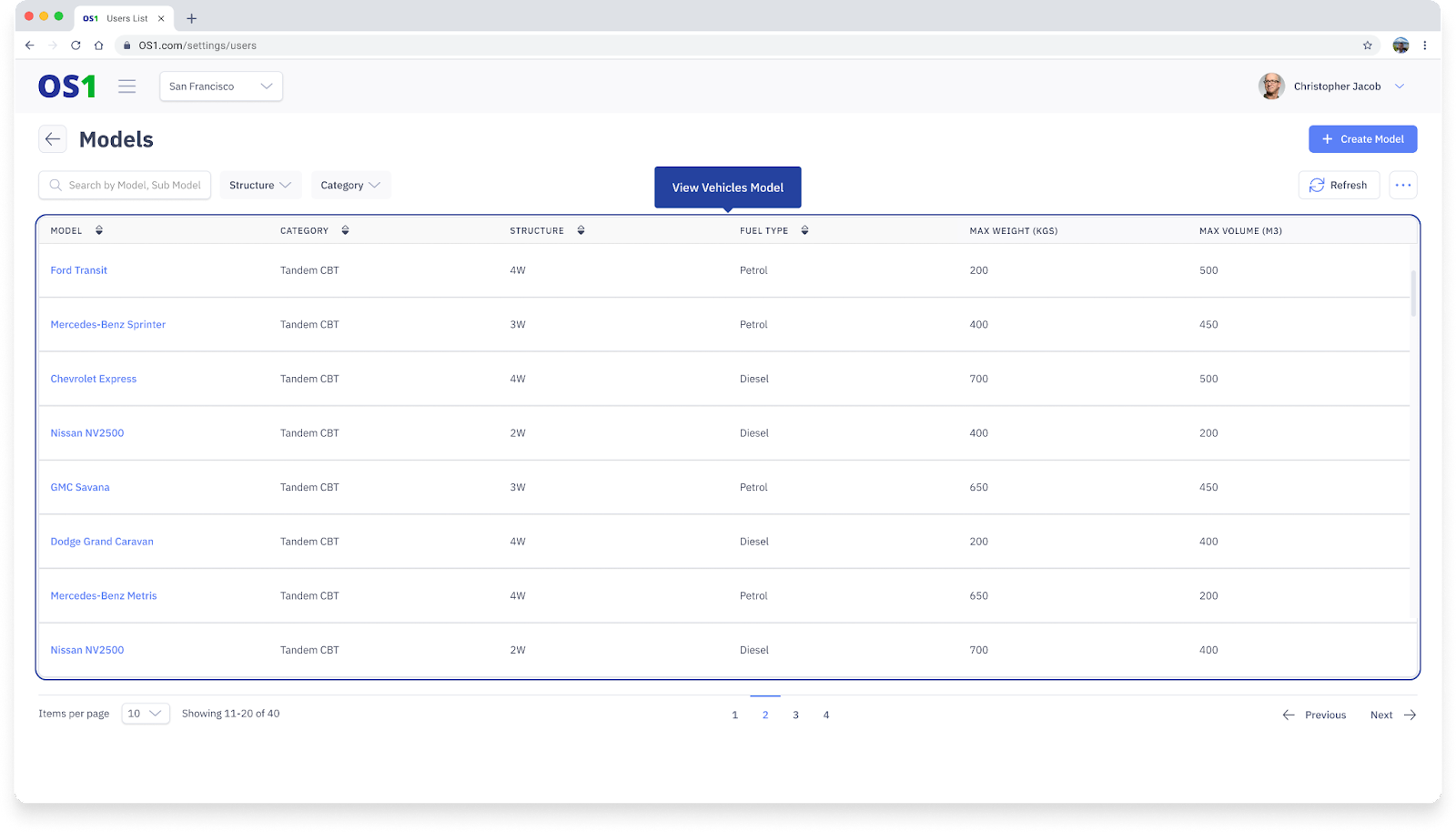
- Viewing a list of all existing Models in the system
- Editing the information of an existing Model using the “Edit” button
- Searching for a specific Model by its Model Name, Category, or Subcategory
- Modifying the columns that you see on the Vehicle Model table
Create Vehicle Models
To create a Vehicle Model on DispatchOne, click on the "Settings" link in the side navigation menu. Under the Settings Page navigate to “Vehicles” and then to "Models". Here click on the "Create Model" button located in the top right corner of the page. This will take you to the Create Vehicle Model page, where you need to enter the following information:
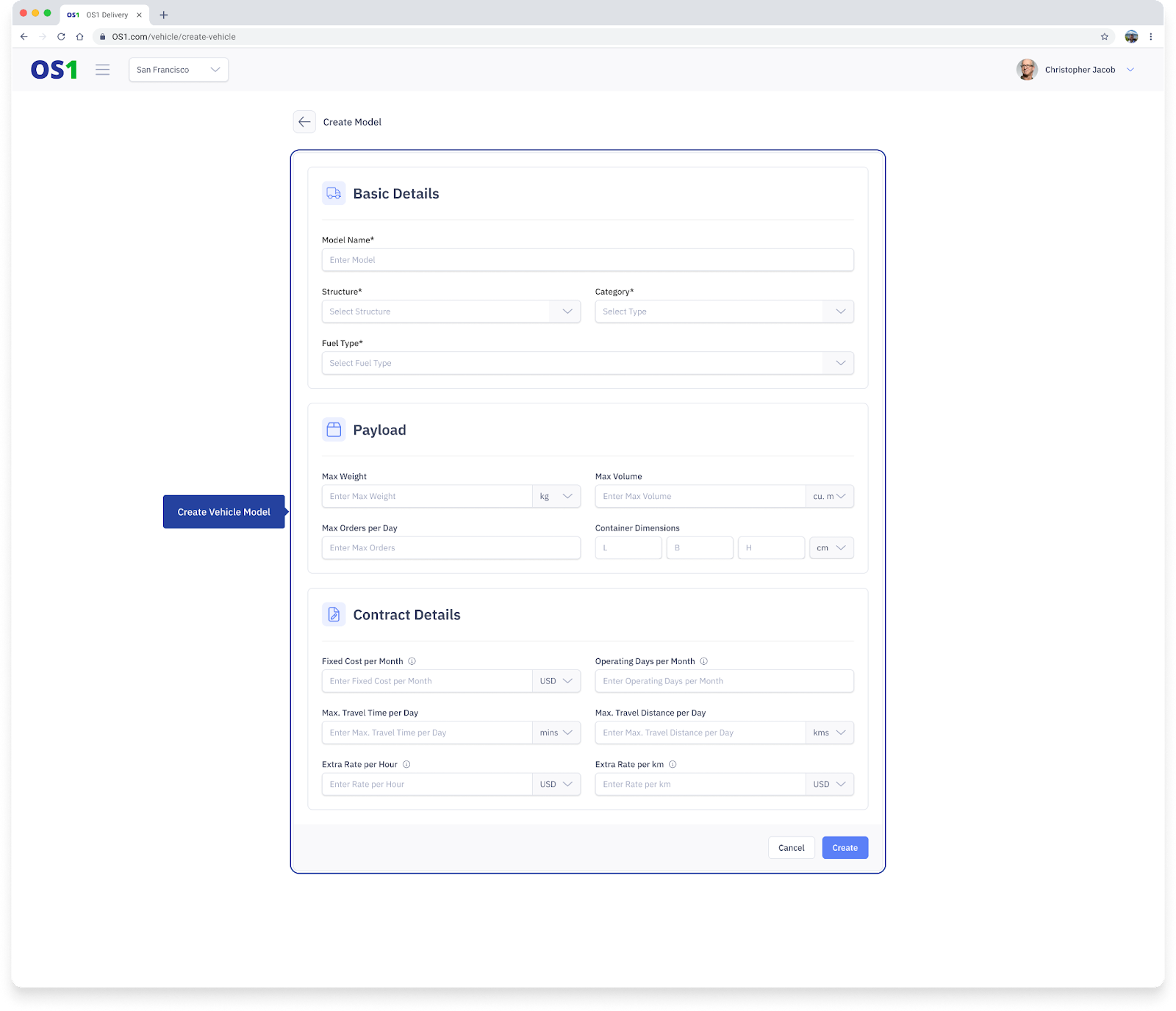
1. Basic Details
The Basic details are used to identify a vehicle model and to capture the key characteristics of the vehicle model
- Model Name: From a dropdown, select the model or make of the vehicle you want to create in the system. If there is no Vehicle Model already created, click on “Create New Vehicle Model” in the dropdown
- Structure: From a dropdown, select the structure of the vehicle you want to create in the system. In case, you want to create a new Structure, click on "+ Add Structure" at the bottom of the list
- Category: From a dropdown, select the category of the vehicle you want to create in the system. In case, you want to create a new Category, click on "+ Add Category" at the bottom of the list
- Fuel: From a dropdown, select the type of fuel consumed by this vehicle. In case, you want to create a new Fuel for the category, click on "+ Add Fuel Type" at the bottom of the list
- Owner Type: Select the type of owner of this vehicle, from a list of ‘Organization’, ‘Operator’, or ‘Third-party/Leased’
2. Payload
The Payload information will be associated with any vehicles created out of a vehicle model and will be used while planning dispatches. All the below fields are optional.
- Maximum weight: This is the maximum weight any vehicle associated with this vehicle model will be allowed to carry
- Maximum volume: This is the maximum volume any vehicle associated with this vehicle model will be allowed to carry
- Maximum orders per day: This is the maximum number of orders any vehicle associated with this vehicle model will be allowed to carry in a calendar day
- Vehicle Dimensions: This captures the length, breadth, and height of the vehicle's container space so that only the correct orders are dispatched on the vehicles associated with this vehicle model
3. Contract Details:
The Contract details will be associated with any vehicles created out of a vehicle model and will be used while planning dispatches specifically while using Route Optimizer. All the below fields are optional.
- Fixed cost per month: This field captures the total fixed cost for a month for the vehicle associated with this vehicle model. This cost is further used to identify the right vehicles to be dispatched ensuring lower overall costs.
- Number of operating days per month: This field captures the total operating days for a month for the vehicle associated with this vehicle model. This value works in conjunction with the Fixed cost per month.
- Maximum travel time per day: This field captures the maximum travel time per day for a vehicle associated with the vehicle model. This is a constraint that will be used while generating optimized routes using Route Optimizer.
- Maximum travel distance per day: This field captures the maximum travel distance per day for a vehicle associated with the vehicle model. This is a constraint that will be used while generating optimized routes using Route Optimizer.
- Extra rate per hour: This field captures the overtime amount payable to the vehicle associated with the vehicle model. This value works in conjunction with the Fixed cost per month.
- Extra rate per unit distance travelled: This field captures the amount payable for the extra distance travelled by the vehicle associated with the vehicle model. This value works in conjunction with the Fixed cost per month.
After entering all the required information, you can create the Vehicle Model by clicking on the "Create" button. Please note that vehicle models once created cannot be edited as of now. Also, Vehicle Models are stateless so they are always available for use.
View Vehicle Models
Once you have created a Vehicle Model, you can see the list of all the created Vehicle Models on the Vehicle Model Listing page.
Search Vehicle Models
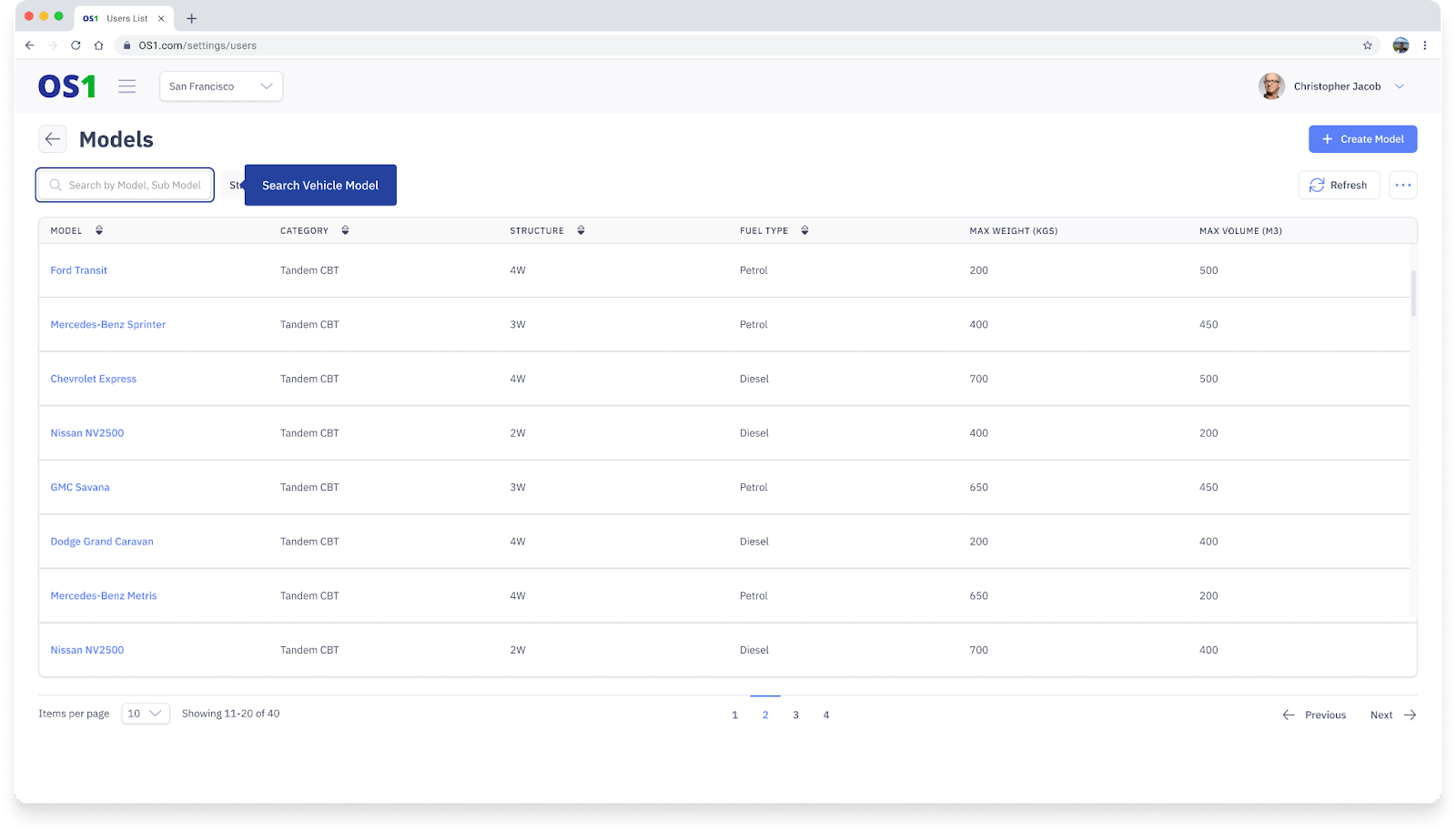
To search for a Vehicle Model, enter the Vehicle Model Name in the search bar on the Vehicle Model Listing page.